
Appearance
CLI Reference
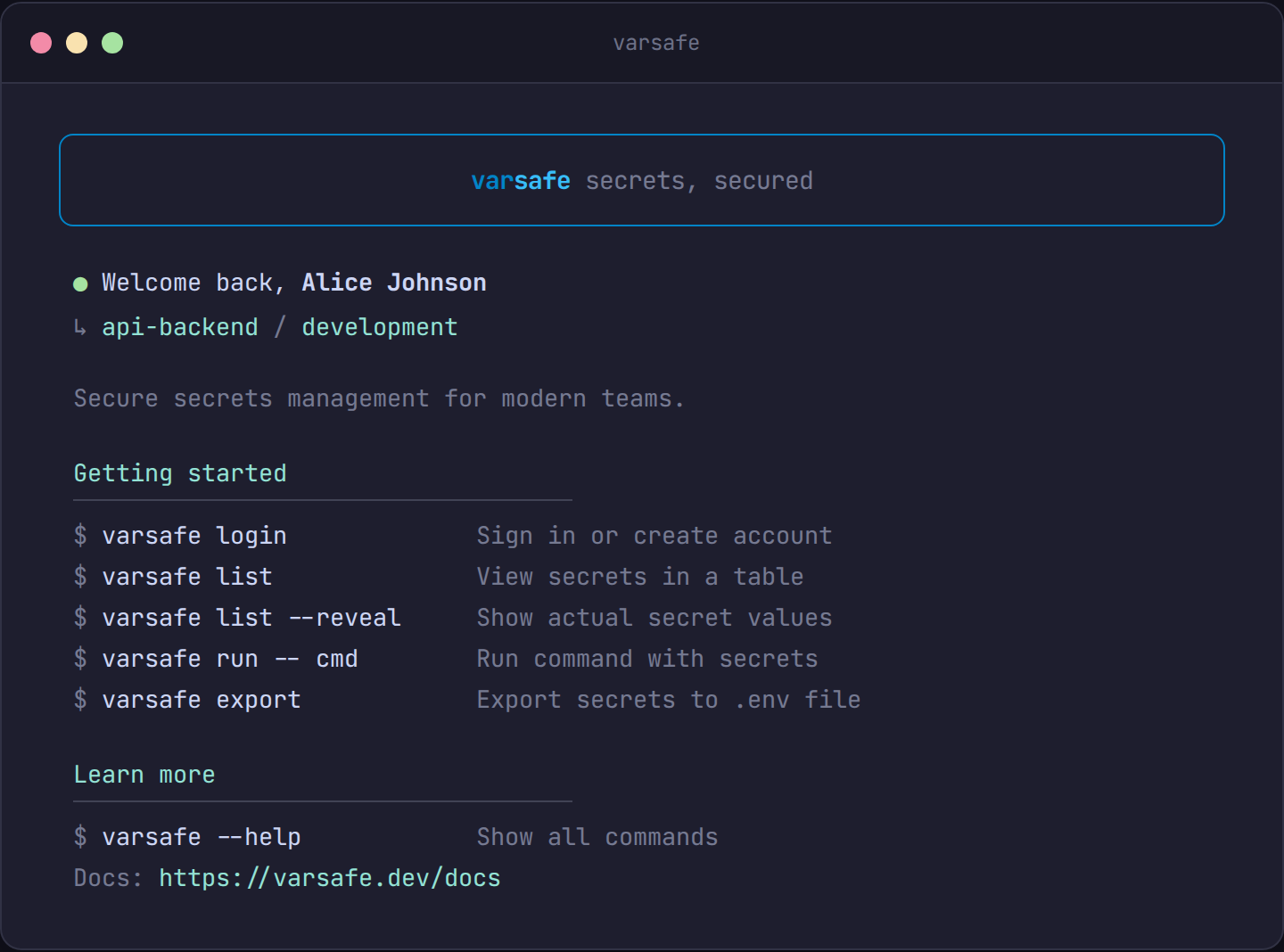
Complete reference for the varsafe CLI.
Installation
bash
curl -fsSL https://varsafe.dev/install.sh | shbash
varsafe --versionCommands Overview
| Command | Description |
|---|---|
login | Authenticate with varsafe |
logout | Revoke session and clear credentials |
whoami | Display current authenticated user |
use | Set default project and environment context |
list | List secrets for a project/environment (alias: ls) |
set | Set a secret in an environment |
unset | Remove a secret from an environment |
run | Run a command with secrets as environment variables |
export | Export secrets to a file or stdout |
update | Check for CLI updates and install them |
Authentication
varsafe login
Authenticate with varsafe.
bash
varsafe loginOpens your browser for authentication. After confirming, your session is stored locally and used for subsequent commands.
varsafe logout
Revoke current session and clear local credentials.
bash
varsafe logoutWARNING
This immediately invalidates your session server-side. You'll need to login again.
varsafe whoami
Display current authenticated user and session info.
bash
varsafe whoamiOutput:
Email: alice@example.com
Name: Alice Johnson
Teams: acme-engineering (admin), personal (owner)
Session: expires in 23h 45m
Context Management
varsafe use
Set or view your default project and environment context. Once set, other commands will use this context automatically.
bash
varsafe useOptions:
| Flag | Description |
|---|---|
-p, --project | Project name |
-e, --env | Environment (development, staging, etc.) |
--clear | Clear the current context |
Examples:
bash
# View current context
varsafe use

# Set project and environment
varsafe use -p my-api -e development

# Set only project (will prompt for environment)
varsafe use -p my-api

# Clear context
varsafe use --clear
TIP
Set your context once with varsafe use -p my-api -e development and skip the -p and -e flags on every command.
How context resolution works:
- If
-por-eflags are provided, they take priority - Otherwise, saved context from
varsafe useis used - If no context and only one project exists, it's auto-selected
- If multiple options exist in interactive mode, you'll be prompted to choose
Secrets Management
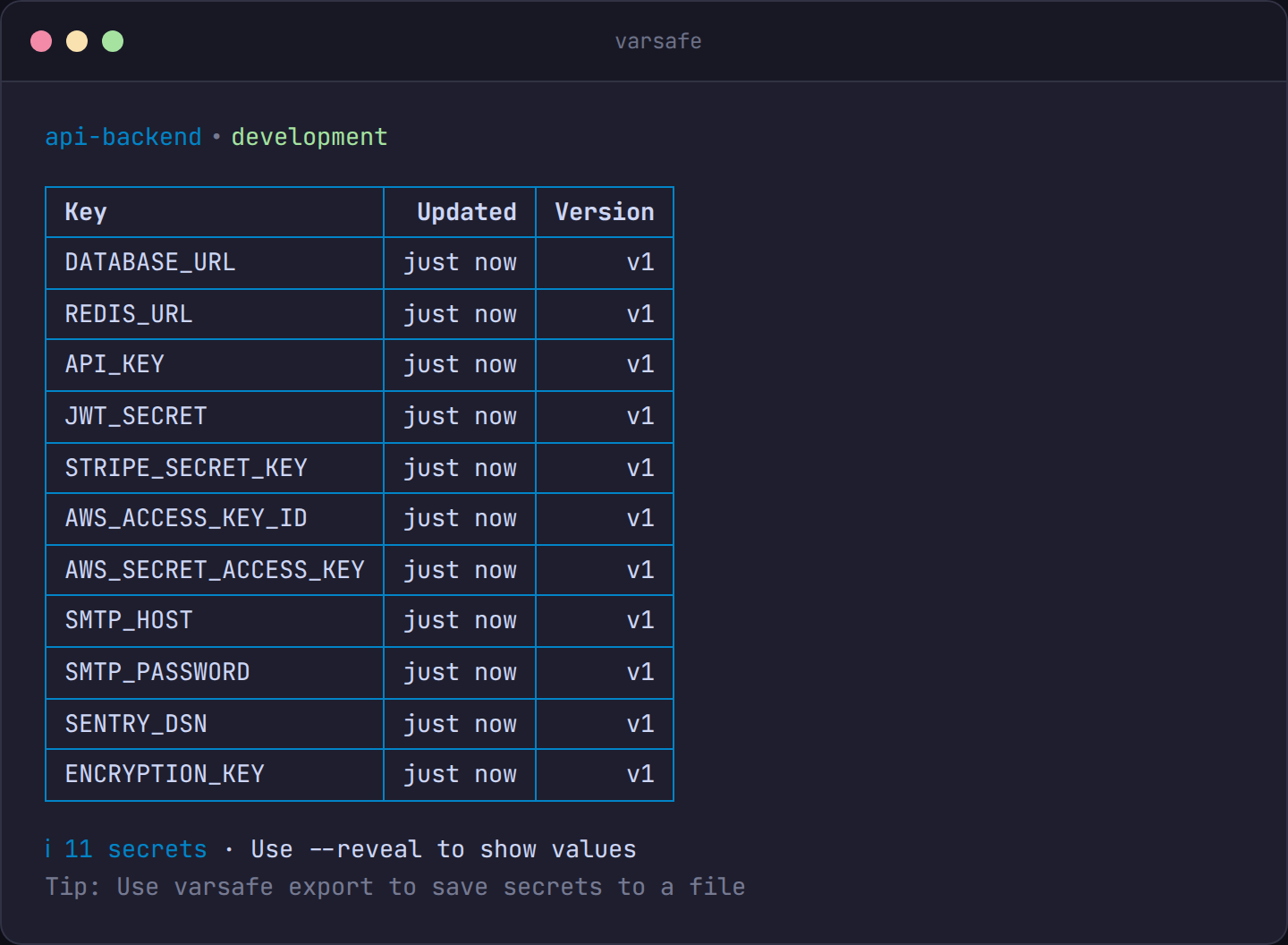
varsafe list (alias: ls)
List secrets for a project/environment.
bash
varsafe listOptions:
| Flag | Description |
|---|---|
-p, --project | Project name |
-e, --env | Environment (development, staging, etc.) |
-r, --reveal | Show actual secret values |
--json | Output as JSON |
Examples:
bash
# List secrets using saved context
varsafe list

# List secrets for specific project/environment
varsafe list -p my-api -e production

# Reveal actual values (audited action)
varsafe list --reveal

# Output as JSON
varsafe list --json

# Combine options
varsafe list -p my-api -e staging --reveal --json
TIP
By default, secret values are masked. Use --reveal to show actual values — this action is logged in the audit trail.
varsafe set
Set a secret in an environment.
bash
varsafe set <KEY> <VALUE>Options:
| Flag | Description |
|---|---|
-p, --project | Project name |
-i, --project-id | Project ID (for CI/automation) |
-e, --env | Environment (development, staging, etc.) |
Examples:
bash
# Set a secret using saved context
varsafe set DATABASE_URL "postgres://localhost/mydb"

# Set for a specific project/environment
varsafe set -p my-api -e production API_KEY sk-live-abc123
Key format
Secret keys must start with a letter and contain only uppercase letters, digits, and underscores (e.g., DATABASE_URL, API_KEY).
varsafe unset
Remove a secret from an environment.
bash
varsafe unset <KEY>Options:
| Flag | Description |
|---|---|
-p, --project | Project name |
-i, --project-id | Project ID (for CI/automation) |
-e, --env | Environment (development, staging, etc.) |
Examples:
bash
# Remove a secret using saved context
varsafe unset OLD_API_KEY

# Remove from a specific project/environment
varsafe unset -p my-api -e staging DEPRECATED_KEY
varsafe run
Run a command with secrets as environment variables.
bash
varsafe run -- <command>Options:
| Flag | Description |
|---|---|
-p, --project | Project name |
-i, --project-id | Project ID (for CI/automation) |
-e, --env | Environment (development, staging, etc.) |
--prefix | Filter secrets by prefix and prepend PREFIX_ to keys |
--include | Comma-separated glob patterns to filter secrets (e.g., VITE_*) |
--env-file | Load secrets from an encrypted .env file (can be repeated) |
Examples:
bash
# Run npm dev with secrets
varsafe run -- npm run dev

# Specify project and environment
varsafe run -p my-api -e staging -- npm run dev

# Run any command
varsafe run -- python manage.py runserver

# With prefix filtering (injects secrets starting with MONITORING_)
varsafe run --prefix monitoring -- ./run-monitoring.sh

# Only inject specific secrets by pattern
varsafe run --include 'VITE_*,CRISP_*' -- bun run build

# Combine include with prefix
varsafe run --include 'DB_*' --prefix app -- node server.js

# Run from an encrypted .env file
varsafe run --env-file .env -- npm run dev

# Combine API secrets with encrypted .env files (env-file values take priority)
varsafe run -p my-api -e dev --env-file .env.local -- npm run dev

# Multiple encrypted .env files
varsafe run --env-file .env --env-file .env.local -- npm start
Status messages
Status messages (e.g., "Injecting 5 secrets") are written to stderr, so they won't interfere with stdout when piping or running subprocesses.
Transparent re-encryption
When --env-file detects a file encrypted with a rotated (inactive) key, it automatically re-encrypts the file with the current key.
Secrets are ephemeral
Secrets exist only in the process memory. They are never written to disk. When the command exits, the secrets are gone.
varsafe export
Export secrets to a file or stdout. By default, .env format output is encrypted using per-environment keypairs. Use --plain for plaintext.
bash
varsafe exportOptions:
| Flag | Description |
|---|---|
-p, --project | Project name |
-i, --project-id | Project ID (for CI/automation) |
-e, --env | Environment (development, staging, etc.) |
-f, --format | Output format: env, json, yaml (default: env) |
-o, --output | Output file path (defaults to stdout) |
--plain | Output plaintext values (skip encryption) |
--tmpfs | Write to /dev/shm/ (RAM-backed tmpfs) |
Examples:
bash
# Export encrypted .env (default)
varsafe export -o .env

# Export plaintext .env
varsafe export --plain -o .env

# Export to RAM-backed tmpfs (file never touches disk)
varsafe export --tmpfs -o app.env

# Export specific environment
varsafe export -p my-api -e production -o .env.production

# Export as JSON (always plaintext)
varsafe export --format json -o secrets.json

# Export as YAML
varsafe export --format yaml

# CI usage (plaintext to tmpfs for ephemeral container injection)
varsafe export --plain -o .env
Encrypted .env files
Encrypted .env files can be safely committed to git. Each value is individually encrypted with your environment's keypair using ECIES (X25519 + AES-256-GCM). Decrypt with varsafe run --env-file .env -- <command>.
Encryption only applies to .env format
JSON, YAML, and Docker formats are always plaintext. Only the default env format encrypts values.
System Commands
varsafe update
Check for CLI updates and optionally install them.
bash
varsafe updateCI/CD Usage
For CI/CD pipelines, use API tokens instead of user sessions. Set the VARSAFE_API_TOKEN environment variable (or VARSAFE_TOKEN as an alias):
yaml
name: Deploy

on:
  push:
    branches: [main]

jobs:
  deploy:
    runs-on: ubuntu-latest
    steps:
      - uses: actions/checkout@v4

      - name: Install varsafe CLI
        run: curl -fsSL https://varsafe.dev/install.sh | sh

      - name: Deploy with secrets
        run: varsafe run -p my-api -e production -- ./deploy.sh
        env:
          VARSAFE_API_TOKEN: ${{ secrets.VARSAFE_API_TOKEN }}
yaml
deploy:
  stage: deploy
  script:
    - curl -fsSL https://varsafe.dev/install.sh | sh
    - varsafe run -p my-api -e production -- ./deploy.sh
  variables:
    VARSAFE_API_TOKEN: $VARSAFE_API_TOKEN
TIP
Create API tokens in the dashboard under your team settings. See API Tokens for details.
CI exports should use --plain
In CI/CD pipelines, use varsafe export --plain when writing secrets to tmpfs or piping to deploy scripts. Encryption is designed for .env files that may persist on disk or be committed — CI secrets are ephemeral and don't need it.
Exit Codes
| Code | Meaning |
|---|---|
| 0 | Success |
| 1 | Authentication failed |
| 2 | Network error |
| 3 | Validation error |
| 4 | Resource not found |
| 5 | Permission denied |
| 99 | Internal error |
Uninstall
To remove varsafe from your system:
bash
# Remove the binary and local data
rm -rf ~/.varsafe
Then remove the PATH entry from your shell configuration:
bash
# Edit ~/.zshrc and remove the line:
# export PATH="$HOME/.varsafe/bin:$PATH"
bash
# Edit ~/.bashrc and remove the line:
# export PATH="$HOME/.varsafe/bin:$PATH"
bash
# Edit ~/.config/fish/config.fish and remove:
# fish_add_path ~/.varsafe/bin
If you used varsafe use in any project directories, you can also delete the .varsafe context files in those directories.
TIP
This only removes the CLI. Your account, secrets, and team data remain in varsafe and can be accessed from the dashboard or by reinstalling the CLI.
Troubleshooting
"Authentication required"
bash
varsafe loginYour session may have expired. Login again to re-authenticate.
"Project not found"
The project name might not match. List available projects:
bash
# If you have only one project, it's auto-selected
varsafe list

# Or set context interactively
varsafe use
"Permission denied"
Your role might not have access to this environment. Check:
- Is the environment protected? (Members can't access protected environments)
- Are you a member of the correct team?
- Contact your team admin to verify your role.
"No context set"
Set your project context first:
bash
varsafe use -p my-project -e developmentDebug mode
For detailed debugging, check the CLI version and your authentication status:
bash
varsafe --version
varsafe whoami