
Appearance
Dashboard Guide
The varsafe dashboard is a supporting interface for management tasks. Day-to-day secret injection happens through the CLI.
Dashboard vs CLI
Use the dashboard for:
- Creating and managing teams
- Inviting team members
- Managing secrets (bulk import, rotation, diff)
- Environment management
- API token management
- Viewing audit logs
- Security settings (2FA, passkeys)
- Billing and subscriptions
Use the CLI for:
- Injecting secrets into applications
- Exporting secrets
- Day-to-day developer workflow
- CI/CD integration
Navigation
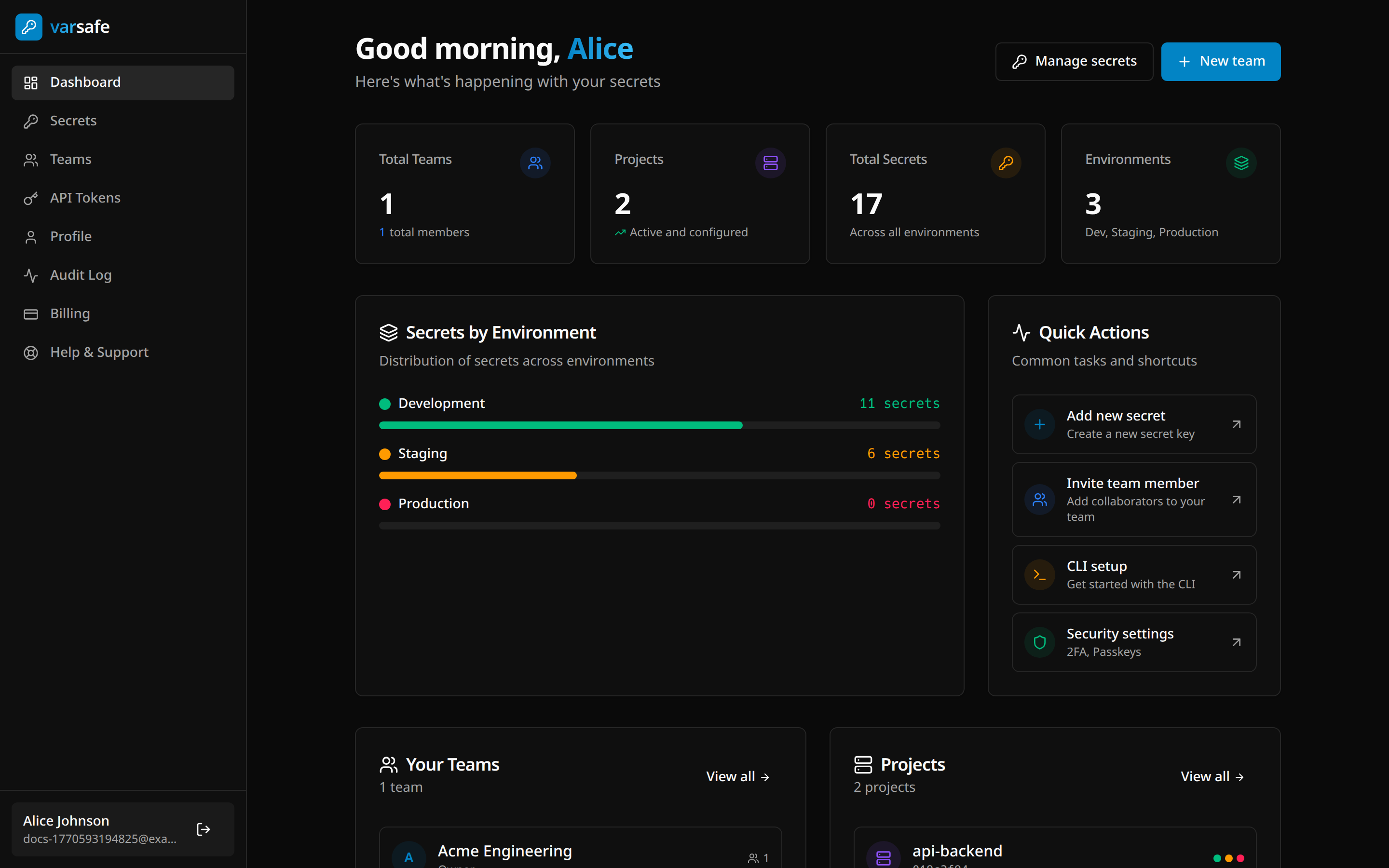
The dashboard has these main sections:
| Section | Purpose |
|---|---|
| Dashboard | Overview of teams, projects, and recent activity |
| Secrets | View and manage secrets by project/environment |
| Teams | Manage teams, members, and projects |
| Audit Log | Activity history and compliance exports |
| Profile | Account settings, security, and sessions |
| Billing | Subscription and payment management |
Secrets Management
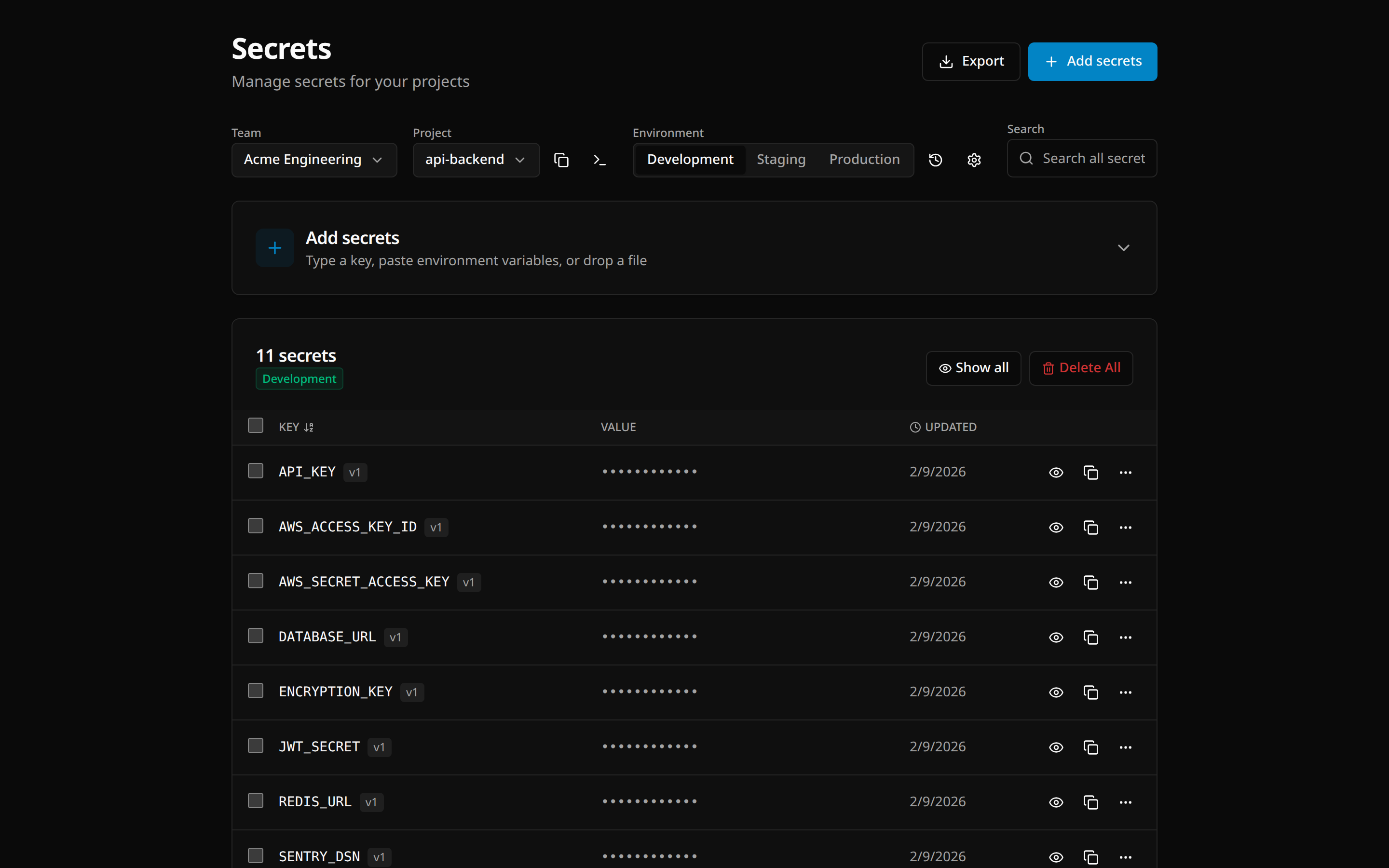
Viewing Secrets
- Navigate to Secrets
- Select a project from the dropdown
- Choose an environment tab (Development/Staging/Production/Custom)
Secrets display:
- Key name
- Version number
- Last updated date
- Masked value (click eye icon to reveal)
WARNING
Revealing a secret value is an audited action.
Adding Secrets
Single Secret
- Click Add secrets
- Select Single mode
- Enter key (automatically uppercased)
- Enter value
- Click Add
Key format
Must be uppercase letters, numbers, and underscores. Must start with a letter. Example: DATABASE_URL, API_KEY_V2.
Bulk Import
- Click Add secrets → Bulk
- Either:
- Drag and drop a
.envor.jsonfile - Paste contents directly
- Drag and drop a
- Review parsed secrets
- Click Add X secrets
env
DATABASE_URL=postgres://localhost/db
API_KEY=sk-1234567890
json
{
  "DATABASE_URL": "postgres://localhost/db",
  "API_KEY": "sk-1234567890"
}
Editing Secrets
- Click the edit icon next to a secret
- Modify the value
- Click Save
Each edit creates a new version. The previous value is preserved in history.
Deleting Secrets
- Click the delete icon next to a secret
- Confirm deletion
INFO
Deleted secrets can be restored via rollback.
Bulk Delete
- Select multiple secrets using checkboxes
- Click Delete selected
- Confirm deletion
Bulk Edit
Edit multiple secrets at once:
- Click Bulk edit
- Modify keys and values in the editor
- Keys are automatically normalized to uppercase with underscores
- Duplicate keys are flagged and must be resolved before saving
- Click Save to apply all changes in one operation
Bulk edit handles renames and value changes together. If a key is renamed, the old key is removed and the new key is created.
Sync Suggestions
The sync suggestions panel helps you keep secrets consistent across environments. It detects secrets that exist in other environments but are missing from the currently selected one.
- In the Secrets page, look for the Sync suggestions panel
- Suggestions are grouped by source environment with color-coded badges
- For each missing secret you can:
- Click Add to copy it to the current environment
- Click Edit & Add to modify the value before adding
- Click Add all on an environment group to copy all its missing secrets at once
TIP
Run sync suggestions after creating a new environment or before deploying to catch missing configuration.
Environment Diff
Compare secrets across environments to find discrepancies:
- In the Secrets page, click Diff
- Select source and target environments
- View differences:
- Only in source — Keys missing in target
- Only in target — Keys missing in source
- Different values — Keys with different values
TIP
Use diff before deploying to catch missing or inconsistent secrets between environments.
Secret History & Rollback
Viewing History
- In the Secrets page, click History
- See all operations for the current environment:
- Create, update, delete operations
- Who made the change
- When it happened
Rolling Back
- Click Rollback next to an operation
- Preview what will change:
- Secrets to be deleted
- Secrets to be restored
- Secrets to be reverted to previous versions
- Confirm the rollback
WARNING
Rollback restores the environment to its state before that operation. Review the preview carefully.
Secret Rotation
Rotate secrets with preview mode to ensure safe propagation:
- Click the rotate icon next to a secret
- Either:
- Let varsafe auto-generate a new value
- Enter a new value manually
- Preview the change
- Confirm rotation
The old value becomes immediately invalid. New inject commands receive the new value.
Environment Management
Default Environments
Every project comes with three environments:
- Development — Local development
- Staging — Pre-production testing
- Production — Live systems (protected by default)
Creating Custom Environments
- Go to your project settings
- Click Add environment
- Enter name and slug
- Choose a color for visual identification
- Set protection status
- Click Create
Protected Environments
When an environment is marked as protected:
- Owner / Admin — read/write access
- Developer / Operator — read-only access
- Viewer / Billing — no access
To protect an environment:
- Go to environment settings
- Toggle Protected on
- Save changes
Duplicating an Environment
Duplicate an existing environment to create a copy with all its secrets:
- Go to your project's environment list
- Click the Duplicate button next to an environment
- In the modal, enter:
- Name — The new environment name
- Slug — URL-safe identifier
- Color — Visual identifier for the environment
- Protected — Whether the new environment should be protected
- Click Duplicate
All secrets from the source environment are copied to the new one. Changes to the new environment do not affect the original.
TIP
Duplicating is useful for creating feature-specific environments (e.g., duplicate staging to feature-x) or setting up new deployment targets with the same configuration.
Deleting Environments
- Go to environment settings
- Click Delete environment
- Confirm deletion (this is permanent)
DANGER
Deleting an environment removes all its secrets permanently. This cannot be undone.
Team Management
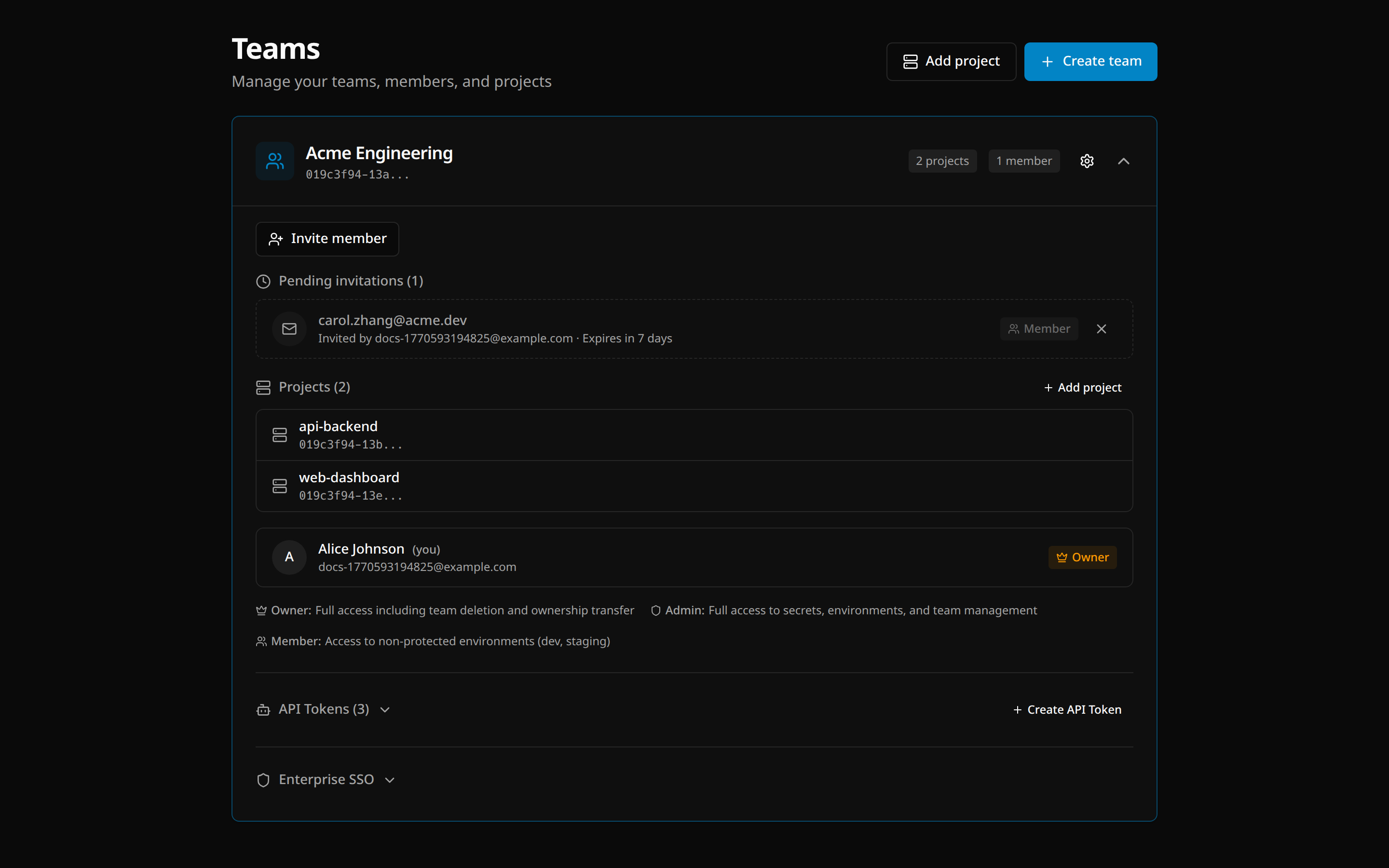
Creating a Team
- Navigate to Teams
- Click Create team
- Enter team name
- Click Create
Creating a Project
- Navigate to Teams
- Click Add project
- Select the owning team
- Enter project name (match your repository name)
- Click Create
Inviting Members
- Expand a team by clicking it
- Click Invite member
- Enter their email address
- Select a role:
- Admin — Manage members and all secrets in all environments
- Developer — Read/write secrets in non-protected environments, read-only in protected
- Operator — Read-only access to all environments including protected
- Viewer — Read-only access to non-protected environments
- Billing — Billing management only, no secret access
- Click Send invite
INFO
Invitations expire after a set period. The invitee receives an email with a link to accept.
Changing Roles
- Expand a team
- Click the ... menu next to a member
- Select Change role
- Choose the new role
Deactivating Members
Deactivation soft-disables a member instead of removing them, preserving their audit history and making reactivation easy.
- Expand a team
- Click the ... menu next to a member
- Select Deactivate
Deactivated members:
- Retain their role and audit history
- Have a 7-day grace period where access is preserved
- Cannot access secrets after the grace period
- Do not count toward active member limits after grace period
To reactivate a member, click the ... menu and select Reactivate. The member regains full access immediately.
INFO
Owners cannot be deactivated. Transfer ownership first if needed.
Removing Members
- Expand a team
- Click the ... menu next to a member
- Select Remove from team
- Confirm removal
Transferring Ownership
- Expand a team
- Click the ... menu next to a member
- Select Transfer ownership
- Confirm transfer
WARNING
Only one owner per team. The current owner becomes an admin after transfer.
API Tokens
API tokens enable programmatic access for CI/CD pipelines and automation.
Creating a Token
- Go to your team settings
- Navigate to API Tokens
- Click Create token
- Enter a descriptive name
- Click Create
- Copy the token immediately — It won't be shown again
Using Tokens
Set the VARSAFE_API_TOKEN environment variable (or VARSAFE_TOKEN as an alias):
bash
export VARSAFE_API_TOKEN=vs_at_xxxxxxxxxxxxx
varsafe run -p my-api -e production -- ./deploy.sh
Or in CI/CD:
yaml
env:
  VARSAFE_API_TOKEN: ${{ secrets.VARSAFE_API_TOKEN }}
Rotating Tokens
- Click Rotate next to a token
- A new token is generated
- Copy the new token
- Update your CI/CD secrets
The old token is immediately invalidated.
Revoking Tokens
- Click Revoke next to a token
- Confirm revocation
The token stops working immediately.
Security Settings
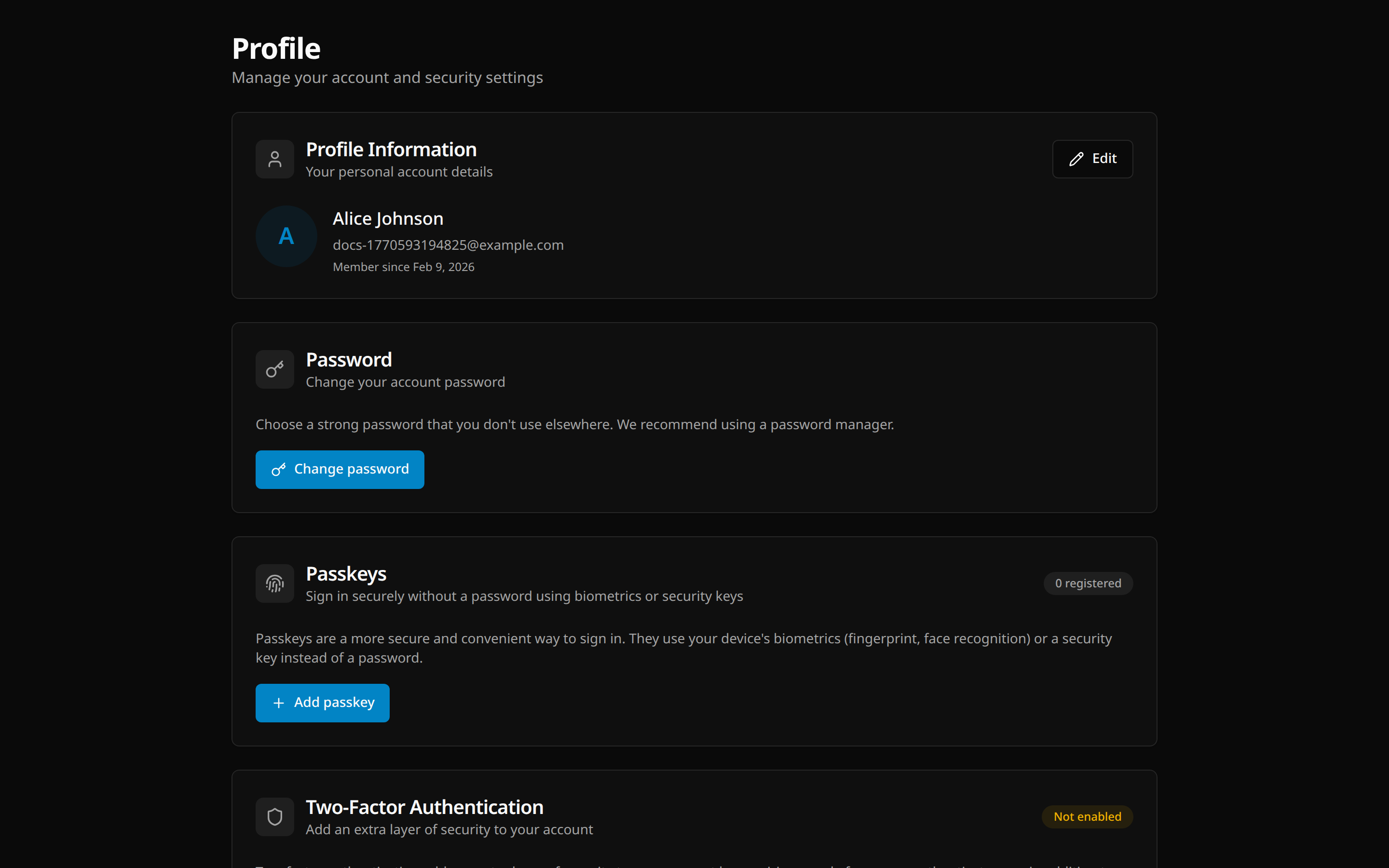
Two-Factor Authentication (2FA)
- Navigate to Profile → Security
- Click Enable 2FA
- Enter your password
- Scan the QR code with your authenticator app
- Enter the verification code
- Save your backup codes securely
Passkeys
Passkeys provide passwordless authentication using biometrics or security keys.
- Navigate to Profile → Security
- Click Add passkey
- Give it a name (e.g., "MacBook Pro Touch ID")
- Follow your browser's prompts
- Confirm with biometrics or security key
Session Management
View and manage active sessions:
- Navigate to Profile → Security
- See all active sessions with:
- Device/browser info
- IP address
- Last active time
- Click Revoke to end a session immediately
Audit Log
Viewing Activity
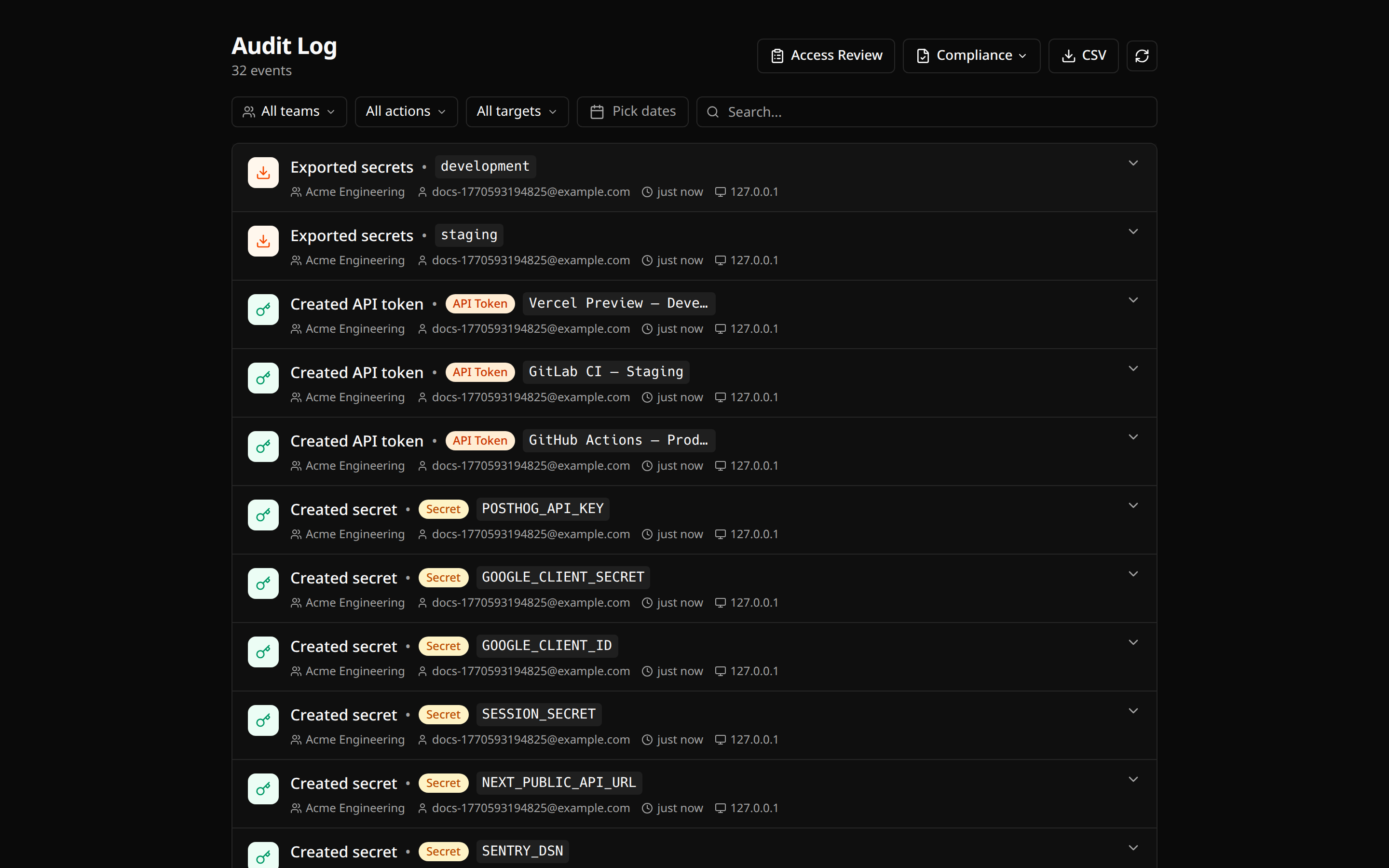
- Navigate to Audit Log
- Use filters:
- Search by email, action, or target
- Filter by action type
- Filter by target type
- Set date range
Understanding Events
Each event shows:
- Action (e.g., "Created secret", "Signed in")
- Actor (who performed the action)
- Target (what was affected)
- Source (dashboard, CLI, or API token)
- Timestamp
- IP address
Click an event to expand details.
Tracked Actions
| Category | Actions |
|---|---|
| Auth | Login, logout, failed login, 2FA events, passkey events |
| Secrets | Create, update, delete, access, export, rotate, rollback |
| Teams | Create, update, invite, remove member, role change |
| Projects | Create, update, delete |
| Environments | Create, update, delete |
| Tokens | Create, rotate, revoke |
Exporting for Compliance
- Click Export dropdown
- Choose format:
- CSV — General export
- SOC 2 — Security audit trail
- GDPR — Processing activities record
- HIPAA — Access controls audit
Billing & Plans
Plans
| Feature | Developer (Free) | Team |
|---|---|---|
| Team members | 3 free, up to 25 | Unlimited |
| Projects | Unlimited | Unlimited |
| Environments | Unlimited | Unlimited |
| Audit retention | 7 days | 90 days |
| Role-based access | Developer only | 6 roles |
| Price | $0 + $6/extra user | $15/user/month |
Upgrading
- Navigate to Billing
- Click Upgrade to Team
- Start your 14-day free trial
- Add payment method before trial ends
Managing Subscription
- Navigate to Billing
- View current plan and usage
- Manage payment methods
- View invoice history