
Appearance
Getting Started
Get from zero to injected secrets in under 5 minutes.
Prerequisites
- A varsafe account — sign up free
Installation
bash
curl -fsSL https://varsafe.dev/install.sh | shbash
varsafe --versionQuick Start
1. Login
Authenticate with your varsafe account:
bash
varsafe loginThis opens your browser for authentication. After confirming, your CLI is authenticated.
2. List Your Secrets
View secrets available in your current context:
bash
varsafe listTo reveal actual values (this action is audited):
bash
varsafe list --reveal3. Set a Secret
Add or update a secret from the command line:
bash
varsafe set DATABASE_URL "postgres://localhost/mydb"4. Inject and Run
Run your application with secrets injected:
bash
varsafe run -- npm run devThat's it. Your application receives secrets as environment variables, but they never touch your filesystem.
5. Export When Needed
If you need a .env file for certain tools:
bash
varsafe export -o .envWARNING
Add .env to your .gitignore to prevent accidental commits.
Context management
Set your context with varsafe use -p my-api -e development — it's saved locally so subsequent commands use it automatically.
Project Setup
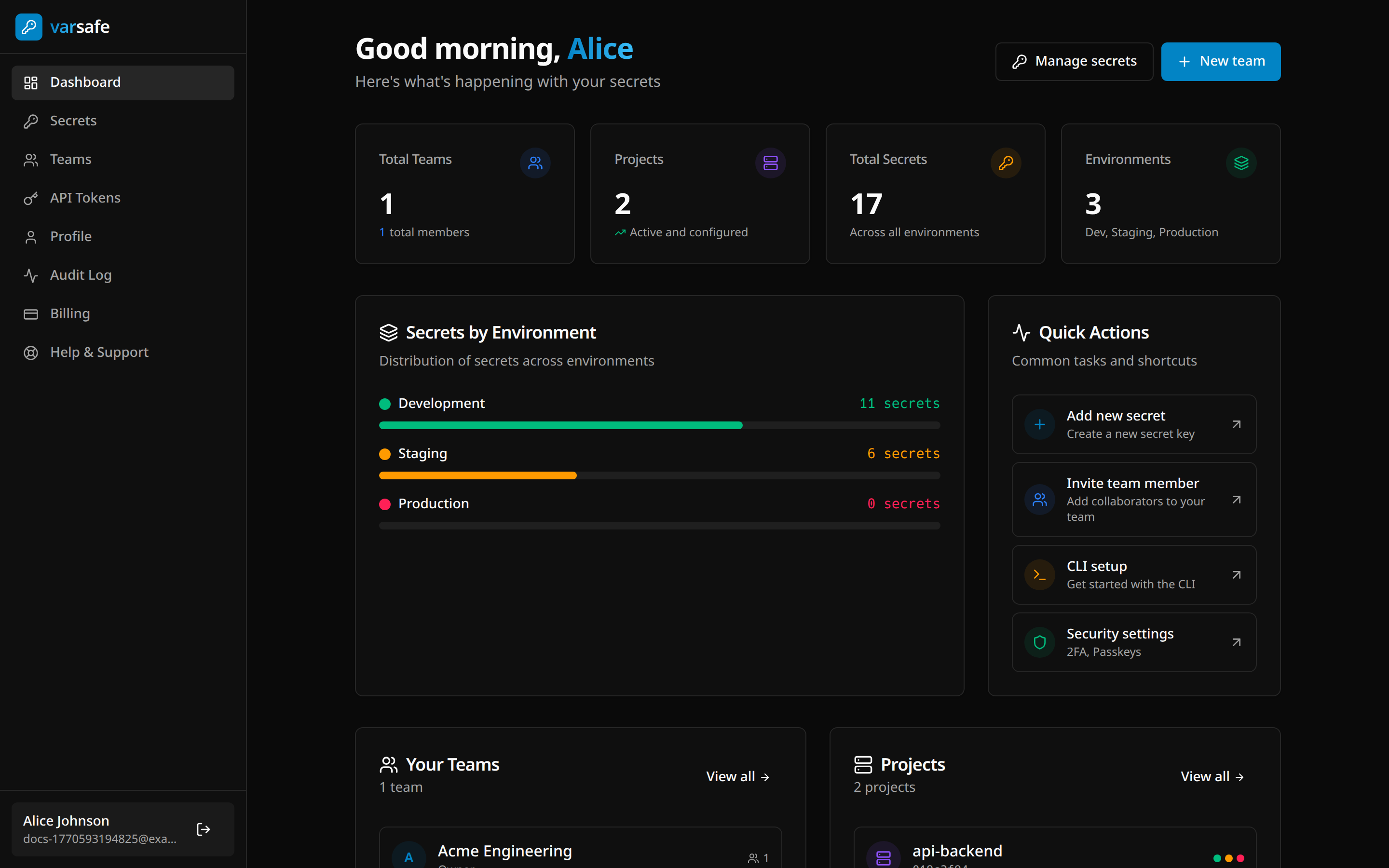
Once you're set up, the dashboard gives you a full overview of your secrets across all projects and environments:
Creating a team
- Go to the dashboard
- Click "Create team"
- Name your team (e.g., "Acme Engineering")
Creating a project
- Navigate to Teams in the dashboard
- Click "Add project"
- Name it to match your repository (e.g., "api-backend")
Every project comes with three default environments:
| Environment | Purpose | Protected by Default |
|---|---|---|
| Development | Local development | No |
| Staging | Pre-production testing | No |
| Production | Live systems | Yes |
You can create custom environments as needed.
Adding secrets
Via Dashboard:
- Go to Secrets
- Select your project and environment
- Click "Add secrets"
- Enter key-value pairs or import from
.env
Via Bulk Import:
- Click "Add secrets" → "Bulk"
- Paste your
.envfile contents or drag-drop the file - Review detected secrets and confirm
Key format
Secret keys must start with a letter and contain only uppercase letters, digits, and underscores (e.g., DATABASE_URL, API_KEY).
Team Collaboration
Inviting Members
- Expand your team in the Teams page
- Click "Invite member"
- Enter their email and select a role
Roles
| Role | Non-Protected Envs | Protected Envs | Team Mgmt |
|---|---|---|---|
| Owner | Read/Write | Read/Write | Full |
| Admin | Read/Write | Read/Write | Yes |
| Developer | Read/Write | Read-only | — |
| Operator | Read-only | Read-only | — |
| Viewer | Read-only | No Access | — |
| Billing | No Access | No Access | Billing |
Protected environments
Production is protected by default. You can mark any environment as protected to restrict write access. When an environment is protected:
- Owner / Admin — read/write access
- Developer / Operator — read-only access
- Viewer / Billing — no access
See Core Concepts for the full permissions matrix.
CI/CD Integration
For automated pipelines, create an API token instead of using your personal session:
- Go to your team settings in the dashboard
- Navigate to "API Tokens"
- Create a new token with appropriate scope
- Add the token to your CI/CD secrets as
VARSAFE_API_TOKEN
yaml
# GitHub Actions example
- name: Deploy with secrets
  run: varsafe run -p my-api -e production -- ./deploy.sh
  env:
    VARSAFE_API_TOKEN: ${{ secrets.VARSAFE_API_TOKEN }}
Next Steps
- Core Concepts — Understand teams, projects, environments, and injection
- CLI Reference — Full command reference with examples
- Dashboard Guide — Managing secrets, teams, and audit logs
- API Tokens — Service accounts for CI/CD pipelines
- MCP Server — Connect AI agents like Claude Code and Cursor
- Security Model — How your secrets stay safe