CLI reference
Install and authenticate the varsafe CLI, resolve context, and master the run/export workflows — plus the generated command reference.
The varsafe CLI puts your secrets into the processes that need them, without a .env file on disk. You, your pipelines and your coding agents run the same command, varsafe run -- <command>: the values reach the program, and the person or agent typing the command sees only what it prints.
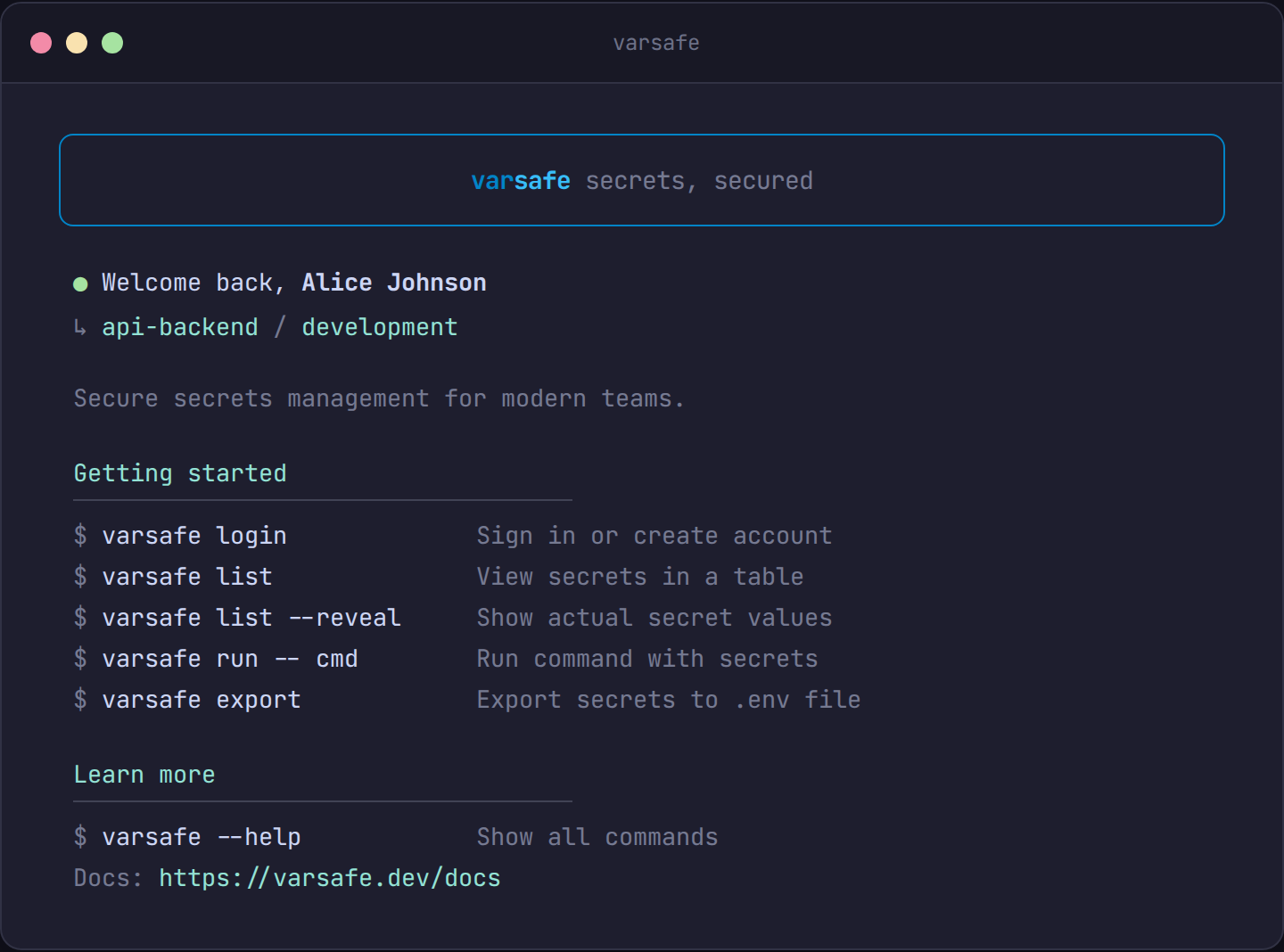
Installation
curl -fsSL https://varsafe.dev/install.sh | bashThe CLI is a single self-contained binary, not an npm package. The installer detects your operating system, architecture and C library, prints the result as a Detected platform: line, and downloads the matching build: Linux x64 or arm64 (glibc or musl), or macOS x64 or arm64. On Windows, run it inside WSL.
It installs to ~/.varsafe/bin (set VARSAFE_INSTALL_DIR to choose another directory) and offers to add that directory to your PATH in ~/.zshrc, ~/.bashrc or ~/.config/fish/config.fish. Check the install and explore the commands, no account needed:
# docs-test: offline
# Check the CLI is installed and explore its commands — no account needed.
set -euo pipefail

varsafe --version

varsafe --help

echo "OK:help"
To upgrade later, the binary updates itself, checking the signed release manifest first:
varsafe updateCommands at a glance
Fifteen commands, none nested:
| Command | Use it to |
|---|---|
run |
Run a command with secrets as environment variables |
get |
Print one secret’s value, for piping into another tool |
set |
Create or change a secret |
unset |
Remove a secret |
list |
List the secrets in an environment (alias: ls) |
export |
Write secrets to a file or stdout |
import |
Bring the values of a .env file into an environment |
use |
Set the default project and environment |
status |
Show the credential, the current context, and what is in it |
login |
Sign in, through the browser or with an API token |
logout |
Revoke this machine’s credential and clear it locally |
whoami |
Show the credential this machine is using and what it may do |
doctor |
Check that the CLI can store credentials securely here |
theme |
Choose the colour palette (auto, dark, light) |
update |
Update the CLI to the latest version |
Every command and flag is in the generated reference at the bottom of this page.
Authentication
There are two ways to authenticate: an interactive browser login for humans, and an API token for machines.
Browser login (default)
varsafe loginThe CLI shows a confirmation code such as 7KQ2M-X9D4F and opens your browser. Type that code into the approval page, choose what this login may do (Read only, Standard or Full access), and approve; the CLI finishes on its own. Your password never passes through the terminal. The code expires after 10 minutes, and the login lasts up to 180 days, or until the machine goes 90 days without using it.
Browser login keeps the credential encrypted under ~/.varsafe, with the key in your operating system’s keychain. On a machine with no keychain, a login run at a terminal falls back to a machine token instead: limited to one team and the projects and environments you choose, it lasts at most 30 days and is stored unencrypted in ~/.varsafe (a directory only you can read). A CI job has nobody to approve a login and no keychain, so use a token there. Details: Authentication.
API token (CI and automation)
Owners and admins create API tokens in the dashboard, under Access → API tokens. Three ways to supply one:
# The CLI picks the token up automatically — no login step at all
export VARSAFE_API_TOKEN="vs_at_vsafe_example"
varsafe run -- ./deploy.sh
# "-" reads the token from stdin — keeps it out of argv
secret-manager read varsafe-token | varsafe login -t -# Interactive masked input — never lands in shell history
varsafe login -TFor pipelines, prefer the environment variable and skip login entirely — see CI/CD usage.
Session commands
varsafe whoami   # which credential this machine uses, and what it may reach
varsafe logout   # revoke this machine's credential and clear it
whoami shows your account and, for each team, the scopes, projects and environments the login may reach; for an API token, its name, team, projects and environments.
For a browser login, logout revokes the credential on the server before clearing it, so a copy of the credentials file is useless afterwards. For an API token stored with varsafe login -T, it only clears the local copy: revoke the token in the dashboard if the machine is no longer trusted.
Environment variables
| Variable | Purpose |
|---|---|
VARSAFE_API_TOKEN |
API token for non-interactive auth — the primary CI variable. Used when this machine has no stored login: a varsafe login credential on the same machine takes precedence. varsafe whoami shows which one is in use |
VARSAFE_TOKEN |
Alias, read when VARSAFE_API_TOKEN is not set. A bare varsafe login stores it as the machine’s login |
VARSAFE_API_URL |
Overrides the API base URL (default https://api.varsafe.dev) — for self-hosted or test stacks |
VARSAFE_DEBUG |
Set to any value to append a troubleshooting log to ~/.varsafe/debug.log, readable only by you. A log over 5 MB is emptied at the next start. Writes to the file, not to your terminal |
VARSAFE_NO_UPDATE_CHECK |
Any non-empty value disables the interactive “update available” prompt, including 0 and false, as with NO_COLOR; an empty value does not. Set it in CI so the prompt cannot hang an unattended run |
VARSAFE_THEME |
auto, dark, or light — overrides the saved palette for one invocation without rewriting settings. An unrecognized value is ignored |
NO_COLOR, FORCE_COLOR |
The usual conventions: NO_COLOR (any value) turns colour off; FORCE_COLOR turns it on for a pipe, unless it is 0 |
VARSAFE_INSTALL_DIR |
Read by the installer only: where to put the binary, as an absolute path (default ~/.varsafe/bin) |
VARSAFE_VERSION |
Read by the installer only: install this release instead of the latest, for example 7.6.0 — useful for pinning CI |
There are no variables for the project or environment: use flags, a .varsafe file, or varsafe use (see Context).
Context
Commands that touch secrets need a project and environment. Resolution order:
- Flags —
-p/--projectand-e/--env(or-i/--project-idin automation) always win - Local
.varsafefile — found by searching from the current directory up to the git root - Global saved context — set via
varsafe useoutside a git repository - Auto-selection when there is only one choice; otherwise a prompt at a terminal, and an error in a script or CI job
# Set context — inside a git repo this writes a .varsafe file at the repo root,
# elsewhere it saves globally
varsafe use -p my-api -e development

# Pick interactively at a terminal; elsewhere, print the current context
varsafe use

# Clear the global context (a repo's .varsafe file stays: delete it to drop it)
varsafe use --clear
A .varsafe file holds only the project, environment and team IDs, with their names as a comment, never a secret value.
This script removes a secret and exercises the context lifecycle:
Tested script: unset-and-context.sh
# docs-test: local-stack
# Remove a secret and manage the saved context.
set -euo pipefail

# VARSAFE_API_TOKEN in the environment authenticates every command below; `varsafe
# login` is neither needed nor possible on a headless runner (no keychain).
varsafe use -p "$VARSAFE_PROJECT" -e development

printf %s 'true' | varsafe set TEMP_FLAG --stdin
varsafe unset TEMP_FLAG

# Context can be cleared at any time; commands then need -p/-e flags
varsafe use --clear
varsafe list -p "$VARSAFE_PROJECT" -e development

echo "OK:unset-and-context"
Inject secrets into a process
varsafe run is the core workflow: it fetches secrets over TLS and injects them as environment variables into the child process. Nothing is written to disk; when the process exits, the secrets are gone.
varsafe run -- npm run devThe command after -- is executed argv-exact — no shell re-parsing, so quoting is preserved and arguments arrive in the child process exactly as you wrote them. Status messages (Injecting 5 secrets from my-api/development) go to stderr, so stdout stays clean for piping. run exits with the command’s own exit code, so CI steps and wrappers behave as if the command ran directly.
That also means shell syntax is not interpreted: ;, |, &&, $() and backticks reach your program as literal characters rather than being executed. This is deliberate — it stops a value such as a CI branch name from running as a command inside the process holding your secrets. When you do want a shell, ask for one explicitly with --shell, which takes a single command string:
varsafe run --shell 'bun run build && ./deploy.sh'Prefer the argv form when you can. Reach for --shell only for pipes, &&, and redirection — and note that --shell 'setup && exec app' keeps your real process in the foreground, which matters for signal handling.
Shape what gets injected:
# Only secrets matching glob patterns (comma-separated, and the flag can be repeated)
varsafe run --include 'VITE_*,CRISP_*' -- bun run build
varsafe run --include 'VITE_*' --include 'CRISP_*' -- bun run build

# Rename injected keys: each secret is exposed with MONITORING_ prepended
# (e.g. DATABASE_URL becomes MONITORING_DATABASE_URL). Keys that already start
# with the prefix are left unchanged.
varsafe run --prefix monitoring -- ./run-monitoring.sh
--include selects which secrets are injected; --prefix renames them. They compose. Repeating --include unions the patterns, so the two forms above inject the same keys.
To merge a plaintext .env (local overrides that are not secrets), source it in the shell, inside the child, so its values win over the injected secrets:
varsafe run --shell 'set -a; . ./.env.local; set +a; exec npm start'The full version, including the child process assertion:
Tested script: run-inject.sh
# docs-test: local-stack
# Inject secrets into a child process as environment variables — no file
# is ever written to disk.
set -euo pipefail

# VARSAFE_API_TOKEN in the environment authenticates every command below; `varsafe
# login` is neither needed nor possible on a headless runner (no keychain).
varsafe use -p "$VARSAFE_PROJECT" -e development

printf %s 'vsafe_example_run_inject_value' | varsafe set API_KEY --stdin

# The child process sees API_KEY; your shell never does.
varsafe run -- sh -c 'test -n "$API_KEY"'

# Only inject secrets matching a pattern
varsafe run --include 'API_*' -- sh -c 'test -n "$API_KEY"'

# --include can be repeated, and the patterns are unioned. This is the one check that
# exercises the real flag parsing rather than an already-joined string: repeats used to
# keep only the last pattern, so OTHER_TOKEN would have arrived empty here.
printf %s 'vsafe_example_run_inject_other' | varsafe set OTHER_TOKEN --stdin
varsafe run --include 'API_*' --include 'OTHER_*' -- \
  sh -c 'test -n "$API_KEY" && test -n "$OTHER_TOKEN"'

# `list` must agree with what `run` injects, so its own repeated flag is checked too.
test "$(varsafe list --include 'API_*' --include 'OTHER_*' --json | grep -c '"key"')" = 2

echo "OK:run-inject"
What run protects against
- Your varsafe credential stays out of the command.
runremovesVARSAFE_API_TOKENandVARSAFE_TOKENfrom the environment it hands to the command, so a build script or an agent’s tool cannot read the token that fetched the secrets. Pass--pass-credentialwhen the command itself callsvarsafe. A command running as your user can still callvarsafewith your stored login. - A secret cannot take over the command.
runrefuses to inject a secret named after a variable that controls how programs load code —PATH,LD_PRELOAD,LD_LIBRARY_PATH,DYLD_INSERT_LIBRARIES,NODE_OPTIONS,PYTHONPATH,BASH_ENVand the like — so someone who can edit one secret cannot run code on every machine that uses it. Set those in your shell instead. - Nothing is written to disk, and shell syntax in arguments is not executed unless you ask for
--shell.
Encrypted .env files
--env-file merges an encrypted .env file into the injected secrets. It accepts encrypted files only, can be repeated, and file values win over the API’s.
varsafe run --env-file .env --env-file .env.extra -- npm startThe CLI sends the file’s encrypted values to varsafe, which opens them for anyone allowed to read the environment and records the read. It needs the same access as varsafe run itself, so it works with a varsafe login or an API token. A file holds the values as they were when it was exported: run without a file for the current ones.
Read a single value
For piping one secret into another tool, varsafe get prints just the value:
# Pipe a value into a tool that reads it from stdin: here, load a deploy key
# into ssh-agent without writing it to disk
varsafe get DEPLOY_SSH_KEY | ssh-add -

# Exact bytes, no trailing newline — for tools that are byte-sensitive.
# On Linux, /dev/shm keeps the file in RAM (macOS has none: use mktemp -d).
# mktemp creates the file readable by you only, under a name nobody else can
# predict or plant first; a plain redirect to a fixed name would do neither.
# Remove the file when the tool is done.
key_file=$(mktemp /dev/shm/signing.XXXXXX)
varsafe get SIGNING_KEY -n > "$key_file"

# Structured output: {key, value, version, updatedAt}
varsafe get DATABASE_URL --jsonImport a .env file
varsafe import (CLI 7.8.0 and later; varsafe update upgrades) brings the values of an existing .env into the current environment. It reads the file the way a .env loader does (quotes, export, multi-line values, comments), shows the plan by key name, and asks before writing at a terminal:
varsafe import .env --dry-run   # the plan, nothing written
varsafe import .env
Keys the environment already has are kept unless you pass --replace-existing; composed secrets are always kept. A key set twice, or a line that is not KEY=value, stops the import before anything is written, and no value is ever printed. In a protected environment it asks you to type the slug, or takes --yes in a script. Move an existing .env into varsafe walks through the whole migration.
Export secrets to a file
When a tool insists on a file, varsafe export writes one. The .env format is encrypted by default: the file starts with a #@varsafe/v2/ek_<id> header naming the environment key, and each value is sealed separately and bound to its variable name (varsafe:v2:...). The file shows which variables exist, not their values.
Sealing uses the environment’s public key, which any credential that can read the environment’s values may use, API tokens included; the first export from an environment creates its key. varsafe run --env-file opens the file again under the same access (see encrypted .env). When another tool needs to read the values itself, write a plaintext file to RAM with --plain --tmpfs and delete it when done, or skip the file and use varsafe run.
# Encrypted .env (default)
varsafe export -o .env

# Plaintext requires an explicit opt-in
varsafe export --plain -o .env

# Other formats: compose (alias: env), docker (alias: kubectl), json, yaml (alias: yml) —
# auto-detected from the output file extension, or forced with -f
varsafe export --plain -o secrets.json
varsafe export --plain -f yaml

# Write to RAM-backed tmpfs (/dev/shm) so the file never touches disk
varsafe export --plain --tmpfs -o app.envThe export flow, covering the encrypted default, --plain, and format variants:
Tested script: export-formats.sh
# docs-test: local-stack
# docs-test-allow-plaintext
# Export secrets when a file is genuinely required. The default .env export
# is encrypted; --plain is an explicit opt-in.
set -euo pipefail

# VARSAFE_API_TOKEN in the environment authenticates every command below; `varsafe
# login` is neither needed nor possible on a headless runner (no keychain).
varsafe use -p "$VARSAFE_PROJECT" -e development

printf %s 'smtp.example.com' | varsafe set SMTP_HOST --stdin

workdir="$(mktemp -d)"
trap 'rm -rf "$workdir"' EXIT

# Encrypted .env (the default). Sealing reads the environment's PUBLIC key, which a
# token is allowed to do, so this works under token auth as well as interactively.
varsafe export -o "$workdir/.env"
grep -q '#@varsafe/v2/' "$workdir/.env"

# Plaintext requires an explicit flag
varsafe export --plain -o "$workdir/plain.env"
grep -q 'SMTP_HOST=' "$workdir/plain.env"

# Other formats: json, yaml, docker
varsafe export --plain -f json -o "$workdir/secrets.json"
varsafe export --plain -f yaml -o "$workdir/secrets.yaml"

echo "OK:export-formats"
CI/CD usage
For pipelines, set VARSAFE_API_TOKEN from your CI secret store: no varsafe login step is needed. The installer cannot change the PATH of the job that runs it, so add ~/.varsafe/bin to PATH yourself, as these examples do:
# Inject secrets into a GitHub Actions job with an API token.
# VARSAFE_API_TOKEN is a repository secret; VARSAFE_PROJECT_ID a repository variable.
name: deploy
on:
  push:
    branches: [main]
jobs:
  deploy:
    runs-on: ubuntu-latest
    steps:
      - uses: actions/checkout@v4
      - name: Install varsafe
        run: |
          curl -fsSL https://varsafe.dev/install.sh | bash
          echo "$HOME/.varsafe/bin" >> "$GITHUB_PATH"
      - name: Deploy with secrets
        env:
          VARSAFE_API_TOKEN: ${{ secrets.VARSAFE_API_TOKEN }}
        # No login step: every command reads VARSAFE_API_TOKEN from the job environment.
        # Passing a token inline (`--token "$VARSAFE_API_TOKEN"`) is refused — argv leaks
        # to shell history and process listings.
        run: |
          varsafe run -i "${{ vars.VARSAFE_PROJECT_ID }}" -e production -- npm run deploy
# Inject secrets into a GitLab CI job with an API token.
# VARSAFE_API_TOKEN is a masked, protected CI/CD variable; VARSAFE_PROJECT_ID a plain one.
deploy:
image: oven/bun:1
script:
# The Bun image has no curl, which the installer is fetched with.
- apt-get update && apt-get install -y --no-install-recommends curl
- curl -fsSL https://varsafe.dev/install.sh | bash
- export PATH="$HOME/.varsafe/bin:$PATH"
# No login step: every command reads VARSAFE_API_TOKEN from the job environment.
# Passing a token inline (`--token "$VARSAFE_API_TOKEN"`) is refused — argv leaks
# to shell history and process listings.
- varsafe run -i "$VARSAFE_PROJECT_ID" -e production -- bun run deployBoth files are validated in our test suite. CI/CD pipelines explains each step: scoping the token, naming the project by ID, and what to do when a tool needs a file.
Exit codes
| Code | Meaning |
|---|---|
| 0 | Success |
| 1 | Authentication failed, a usage error (unknown command or flag, missing argument), or a failure with no more specific code |
| 2 | Network error |
| 3 | Validation error (a bad value or file) |
| 4 | Not found (project, environment or secret) |
| 5 | Permission denied |
| 99 | Internal error |
varsafe run is the exception: once the command starts, run exits with the command’s exit code (128 plus the signal number if a signal ended it). If the command cannot start, run uses the shell’s codes: 127 when it is not found, 126 when it cannot be executed.
Uninstall
-
Sign out, so the credential is revoked on the server and not only deleted locally:
varsafe logout -
Remove the binary and local data:
rm -rf ~/.varsafe -
Remove the
PATHline the installer added:export PATH="$HOME/.varsafe/bin:$PATH"in~/.zshrcor~/.bashrc, orfish_add_pathin~/.config/fish/config.fish.
Also left behind, if you want a clean machine: the CLI’s entry in the operating system keychain (service varsafe), ~/.cache/varsafe/run if it was created, and any .varsafe context files in your repositories.
Troubleshooting
Error messages, their causes, and the fix for each are in the
troubleshooting guide — expired tokens, a stuck browser login,
Not signed in, an empty varsafe list, Project is required in CI, secure-storage
failures, and rate limits.
One case belongs here, because it happens before the CLI can report anything: varsafe: command not found right after installing. The installer adds ~/.varsafe/bin to your
shell config, which an already-open shell has not read yet. Restart the terminal, or add it
for the current session:
export PATH="$HOME/.varsafe/bin:$PATH"If it is still missing, run the installer again and read its Detected platform: line —
it names the artifact chosen for your OS, architecture and C library.
Command reference
Generated from the CLI’s own --help output — always matches the shipped binary.
varsafe login
Authenticate with varsafe
varsafe login [options]
Flag
Type
Description
--api-url <url>
value
API URL (defaults to $VARSAFE_API_URL, then the public API)
-t, --token [token]
optional
Authenticate with an API token. Omit the value for a masked prompt, or pass "-" to read it from stdin. An inline value is rejected — it would leak to shell history.
-T, --token-prompt
boolean
Alias for --token with no value (masked prompt)
-f, --force
boolean
Force re-authentication even if already logged in
-h, --help
boolean
display help for command
varsafe whoami
Show the credential this machine is using and what it may do
varsafe whoami [options]
Flag
Type
Description
--json
boolean
Output the credential description as JSON
-h, --help
boolean
display help for command
varsafe logout
Revoke this machine’s credential and clear it locally
varsafe logout [options]
Flag
Type
Description
-h, --help
boolean
display help for command
varsafe list
Alias: ls
List secrets for a project and environment
varsafe list|ls [options]
Flag
Type
Description
-p, --project <name>
value
Project name
-i, --project-id <id>
value
Project ID (for CI/automation)
-e, --env <environment>
value
Environment (e.g., development, staging, production)
-r, --reveal
boolean
Show actual secret values
--json
boolean
Output as JSON
--include <patterns>
value
Comma-separated glob patterns to filter keys (e.g., --include "VITE_*,*_URL") — same syntax as varsafe run --include. Can be repeated; all patterns given are combined
--source
boolean
With --reveal, show composed secrets as written instead of resolved
-h, --help
boolean
display help for command
varsafe run
Run a command with secrets as environment variables
varsafe run [options] <command...>
Flag
Type
Description
-p, --project <name>
value
Project name
-i, --project-id <id>
value
Project ID (for CI/automation)
-e, --env <environment>
value
Environment (e.g., development, staging, production)
--prefix <prefix>
value
Rename injected keys with PREFIX_ prepended — renames, does not filter (e.g., --prefix monitoring). Use --include to select keys
--include <patterns>
value
Comma-separated glob patterns to filter which secrets get injected (e.g., --include "VITE_*,CRISP_*"). Can be repeated; all patterns given are combined
--env-file <path>
value
Decrypt an encrypted .env file and merge it into the injected secrets (can be repeated). Only encrypted files are accepted — source a plaintext .env in your shell instead
--shell
boolean
Run a single command string through /bin/sh (enables pipes, &&, etc.): varsafe run --shell 'a && b'. On an interactive terminal, use exec for graceful shutdown, e.g. --shell 'setup && exec main'
--pass-credential
boolean
Keep the inherited credential variables (VARSAFE_API_TOKEN, VARSAFE_TOKEN) in the command's environment, e.g. for a nested varsafe call. Everything the command runs can then read every secret that token reaches. Refused if a selected secret has the same name
-h, --help
boolean
display help for command
varsafe export
Export secrets to a file or stdout (env format encrypts by default, use --plain to disable)
varsafe export [options]
Flag
Type
Description
-p, --project <name>
value
Project name
-i, --project-id <id>
value
Project ID (for CI/automation)
-e, --env <environment>
value
Environment (e.g., development, staging, production)
-o, --output <file>
value
Write to file instead of stdout (format auto-detected from extension)
-f, --format <format>
value
Override serialization: compose (.env), docker, kubectl, json, yaml (default: compose)
--plain
boolean
Skip encryption and output plaintext values
--tmpfs
boolean
Write to /dev/shm/ (RAM-backed tmpfs)
-h, --help
boolean
display help for command
varsafe get
Print a single secret value to stdout (pipe-friendly)
varsafe get [options] <key>
Flag
Type
Description
-p, --project <name>
value
Project name
-i, --project-id <id>
value
Project ID (for CI/automation)
-e, --env <environment>
value
Environment (e.g., development, staging, production)
--json
boolean
Output {key, value, version, updatedAt} as JSON
--source
boolean
Print a composed secret as written instead of resolved
-n, --no-newline
boolean
Do not append a trailing newline (exact byte output for piping)
-h, --help
boolean
display help for command
varsafe set
Set a secret in an environment
varsafe set [options] <key>
Flag
Type
Description
-p, --project <name>
value
Project name
-i, --project-id <id>
value
Project ID (for CI/automation)
-e, --env <environment>
value
Environment (e.g., development, staging, production)
-s, --stdin
boolean
Read the value from stdin (e.g. printf %s "$SECRET" | varsafe set KEY --stdin)
--json
boolean
Output {key, version, project, environment} as JSON
-T, --prompt
boolean
Prompt for the value with masked input (default at a terminal; does not leak to shell history)
--from-env <name>
value
Read the value from an environment variable (for CI)
--from-file <path>
value
Read the value from a file (multi-line certs, private keys)
--chomp
boolean
Strip one trailing newline from the value (for echo-style producers)
--template <source>
value
Store a value composed from other secrets, e.g. 'postgres://${DB_PASS}@db'
-y, --yes
boolean
Skip the confirmation required in protected environments
-h, --help
boolean
display help for command
varsafe unset
Remove a secret from an environment
varsafe unset [options] <key>
Flag
Type
Description
-p, --project <name>
value
Project name
-i, --project-id <id>
value
Project ID (for CI/automation)
-e, --env <environment>
value
Environment (e.g., development, staging, production)
-y, --yes
boolean
Skip the confirmation required in protected environments
--json
boolean
Output {key, removed, project, environment} as JSON
--flatten
boolean
Keep dependent secrets working by copying this value into each of them
--cascade
boolean
Delete every secret composed from this one as well
-h, --help
boolean
display help for command
varsafe import
Import the secrets in a .env file into an environment
varsafe import [options] <file>
Flag
Type
Description
-p, --project <name>
value
Project name
-i, --project-id <id>
value
Project ID (for CI/automation)
-e, --env <environment>
value
Environment (e.g., development, staging, production)
--replace-existing
boolean
Overwrite keys the environment already has (by default they are kept)
--dry-run
boolean
Show what would be imported, and write nothing
-y, --yes
boolean
Import without asking for confirmation
-h, --help
boolean
display help for command
varsafe doctor
Diagnose whether the CLI can securely store credentials
varsafe doctor [options]
Flag
Type
Description
--addon-only
boolean
Only verify the native keyring addon loads (tolerate a missing OS backend)
--json
boolean
Emit the report as JSON
-h, --help
boolean
display help for command
varsafe status
Show the credential, the current context, and what is in it
varsafe status [options]
Flag
Type
Description
--json
boolean
Output the status as JSON
-h, --help
boolean
display help for command
varsafe theme
Choose the colour palette (auto, dark, light)
varsafe theme [options] [mode]
Flag
Type
Description
--json
boolean
Output the resolved theme as JSON (never prompts)
-h, --help
boolean
display help for command
varsafe update
Update varsafe CLI to the latest version
varsafe update [options]
Flag
Type
Description
-h, --help
boolean
display help for command
varsafe use
Set default project and environment for commands
varsafe use [options]
Flag
Type
Description
-p, --project <name>
value
Project name
-e, --env <environment>
value
Environment (e.g., development, staging, production)
--clear
boolean
Clear the current context
--json
boolean
Output the resulting context as JSON (never prompts)
-h, --help
boolean
display help for command