Dashboard guide
Manage secrets, environments, people, API tokens, AI agent connections and the audit log from the varsafe dashboard, task by task.
The dashboard is where you decide who and what can reach your secrets, and where you see everything that happened to them. Your code reads secrets through the CLI, your pipelines through API tokens and your AI agents through MCP; you manage all three here.
| Use the dashboard to… | Use the CLI to… |
|---|---|
| Add, edit, compare, roll back and rotate secrets | Run your code with secrets injected (varsafe run) |
| Create environments and protect production | Read and write secrets from a terminal or script |
| Invite people and set their roles | Export a file when a tool insists on one |
| Issue, narrow and revoke API tokens | Authenticate pipelines with a token |
| See and revoke AI agent connections | |
| Review the audit log and export it | |
| Manage SSO, your sign-in security and billing |
Find your way around
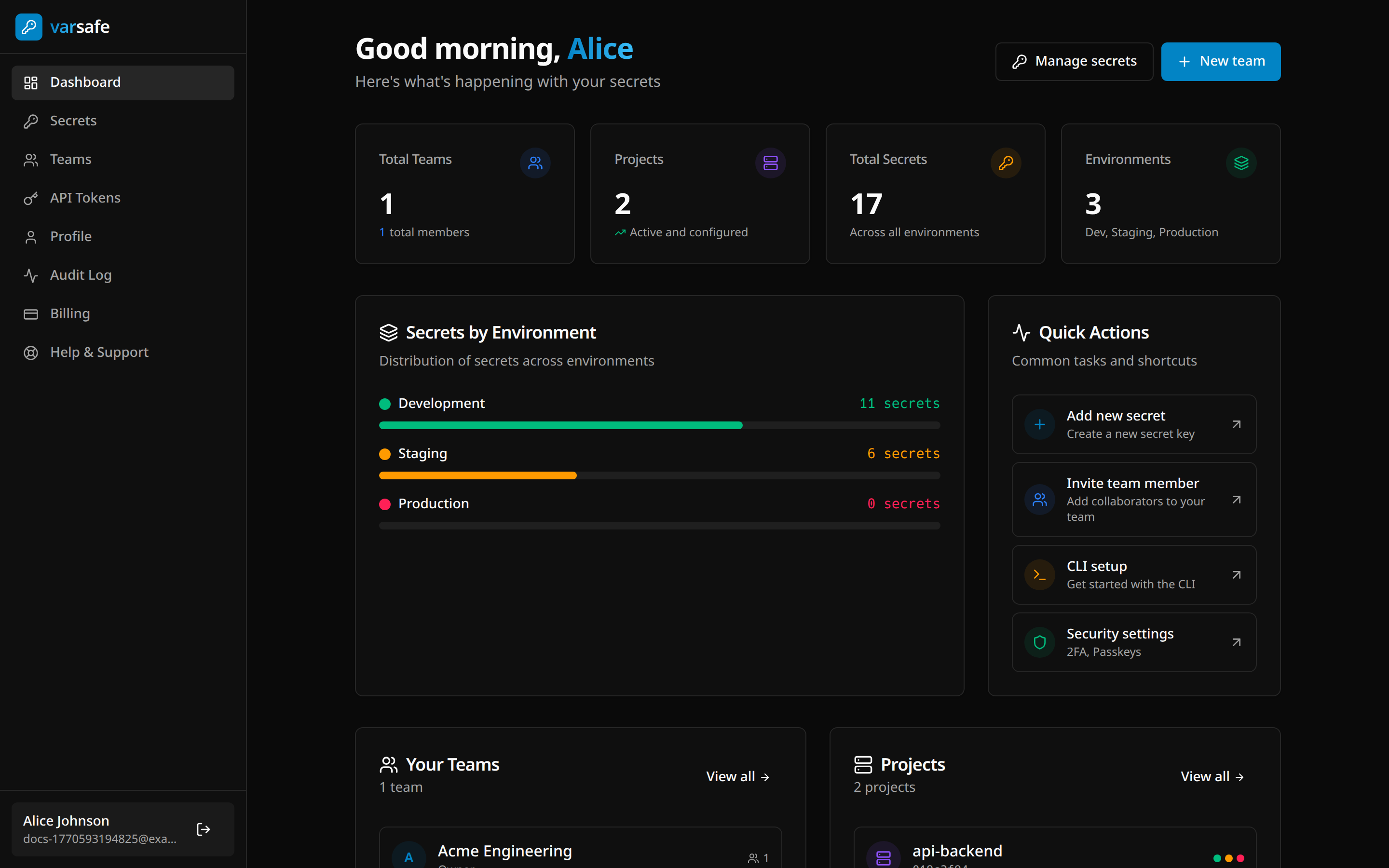
The sidebar groups pages by what you came to do:
| Group | Page | What you do there |
|---|---|---|
| Workspace | Overview | A summary of the active team: its projects, and how many environments and secrets they hold across every project, broken down by environment. Counts cover only the environments your role can read. Also your teams and quick actions. |
| Projects | Every project in the active team. | |
| Secrets | The secrets of one project, one environment at a time. The current project’s environments are listed beneath it, each in its own colour: one click opens it. | |
| Audit log | Every read, change, sign-in and permission change. | |
| Access | Teams | Members, roles, invitations, projects, team settings and SSO. |
| API tokens | Tokens for CI/CD and automation. | |
| Agents | AI agents connected over MCP. | |
| Account | Billing | Your plan, seats and payment details. |
| Help | Support. |
The team switcher at the top of the sidebar sets the active team; pages show that team’s projects and data. Your name at the bottom of the sidebar opens your Profile, where your sign-in security lives. The CLI Setup page, reached from CLI setup under Quick Actions on the Overview, walks you through installing the CLI and signing in.
Work with secrets
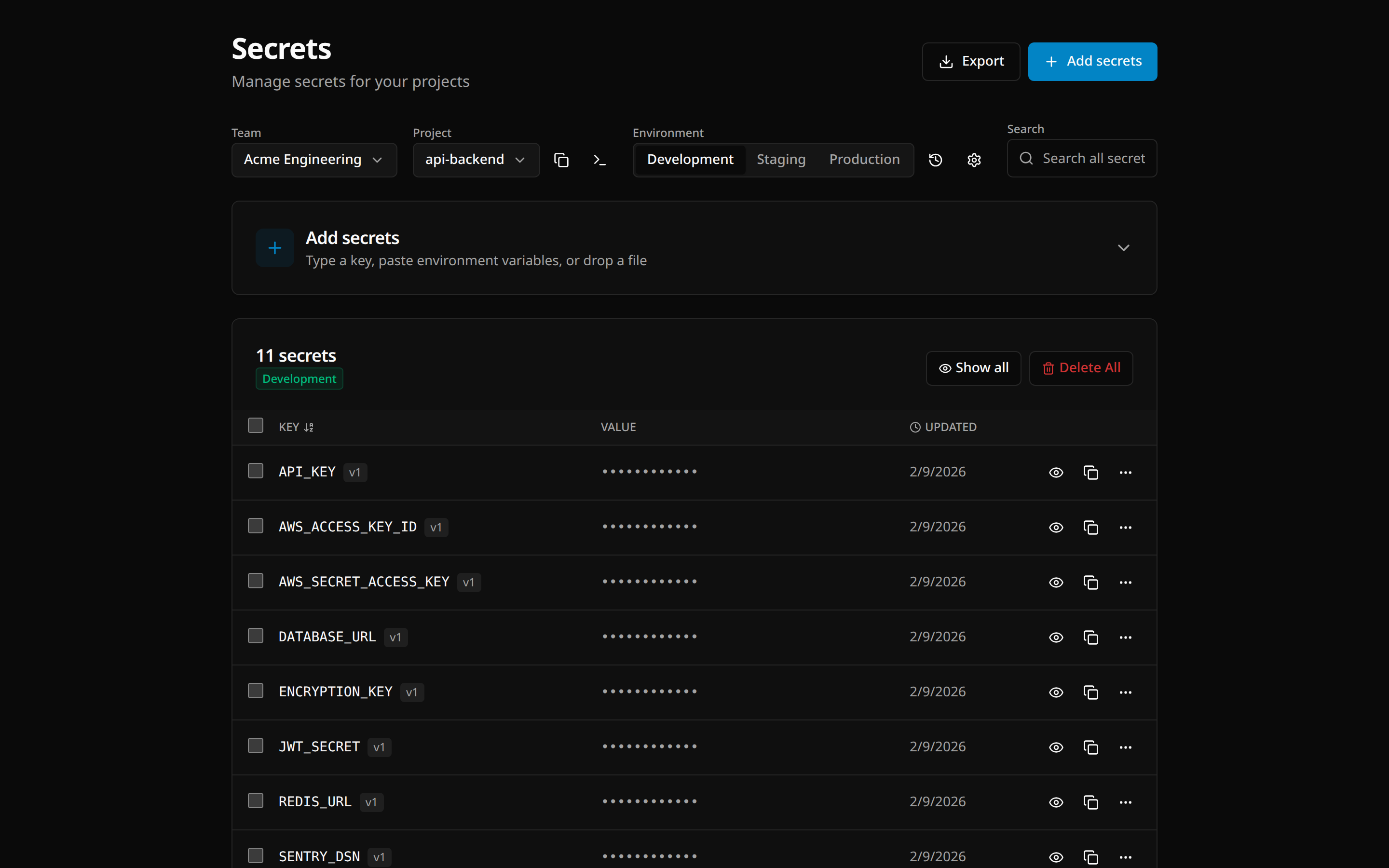
Open an environment
On Secrets, pick the Project, then the environment from the tabs below it (or click the environment under Secrets in the sidebar). Each tab carries the environment’s colour. A protected environment shows a Protected pill noting that only owners and admins write there.
Each row shows the key, its version (v3), when it last changed, and a masked value. Click the eye to show a value, or the copy button to copy it without showing it. Show all reveals the whole page. Search all secrets… filters by key.
Add secrets
Click Add secrets. The panel takes one secret or many:
-
One secret: under Quick add, type the key and value, then Add. Keys are tidied as you type: uppercased, with spaces and punctuation turned into underscores. A key must start with a letter and contain only
A–Z,0–9and_, for exampleDATABASE_URLorAPI_KEY_V2. Quick add never replaces an existing key. -
Many at once: under or import multiple, drop a
.envor.jsonfile, click Upload file, or paste the contents. varsafe lists what it parsed, and the button names the count, Add 12 secrets, so a file that parsed short is obvious before you commit. If some keys already exist, varsafe asks before replacing them (Replace and add); the earlier values stay in each secret’s version history.The
.envreader is deliberately simple: oneKEY=valueper line, blank lines and#lines skipped, and one pair of surrounding quotes removed. It does not read multi-line values, inline comments or escape sequences, and it renames keys to fit the key format (export API_KEYbecomesEXPORT_API_KEY). Check the parsed list before adding, and use JSON orvarsafe set --from-filefor multi-line values. Move an existing .env into varsafe has the details.
DATABASE_URL=postgres://localhost/db
API_KEY=sk-1234567890
{
"DATABASE_URL": "postgres://localhost/db",
"API_KEY": "sk-1234567890"
}Nested JSON objects are flattened with underscores ({"DB": {"HOST": "x"}} becomes DB_HOST). Arrays and keys that cannot be valid secret names are skipped.
To build a secret out of others, such as a connection string that embeds a password, switch the value to Composed. See Composed secrets.
Edit or rename a secret
Open the row’s ⋯ menu and choose Edit. Change the value and Save: every save creates a new version, and the previous one stays in history. You can rename the key in the same dialog; a renamed secret starts a fresh history under its new name.
To change several secrets at once, tick their checkboxes and click Edit in the selection bar. The Edit N Secrets dialog marks each row Renamed or Modified, blocks saving while two rows share a key, and applies everything in one step with Save N changes.
Delete secrets
- One secret: ⋯ → Delete, then confirm. If other secrets are built from it, the dialog becomes Other secrets depend on this and asks whether to Keep them working or Delete them too.
- Selected secrets: tick them and click Delete in the selection bar, then confirm. The question names how many secrets will go and from which environment; Cancel or Escape keeps them.
- Everything shown: Delete All removes every secret matching the current search, after the same question.
A deleted secret can be brought back by rolling the environment back to before the deletion; see Undo a change.
Download secrets as a file
Export downloads the environment’s secrets as .env, .json or .yaml, or only the selected ones when you have a selection. The file is plaintext and lands in your browser’s downloads, so delete it once you are done. For an encrypted .env, use varsafe export.
Keep environments in sync
A key that exists in staging but not in production is the failure that shows up as a crash on boot, right after a deploy. The dashboard finds those before you ship.
Fill in missing secrets
Above the table, varsafe tells you when other environments of the project have secrets this one lacks, N secrets available from other environments, or that it is In sync with the other environments. Open it to see them grouped by the environment they come from. For each one, Add copies it here as-is, and Edit & Add lets you change the value first. Add all N copies all of them.
Finding these secrets reads only their names, so it records nothing in the audit log. A value is read when you act on one: showing it, Edit & Add and Add read that one secret from the environment it comes from, and Add all N reads each secret it copies. Each of those is recorded as a read of that secret.
A composed secret is copied as its resolved value and marked copies as plain text, because its references may not exist here. If a secret changed in its environment after the list loaded, varsafe does not copy it: the list refreshes so you can check it and add it again.
Compare two environments
Click Compare with… on the Secrets page (shown when the project has more than one environment) and pick the other environment. The Compare Environments page lines the two up side by side:
- Filter by All, Different or Identical. Different covers keys only on the left, only on the right, and in both with different values. Identical is the useful one mid-migration: it shows what is already reconciled.
- Copy to left and Copy to right move a value across, and each value’s menu offers Copy value, Edit, Rotate and Delete.
- Show values reveals values; Swap environments flips the sides.
Undo a change
Every change creates a new version, and you can undo at two levels.
One secret. ⋯ → History opens Version History: every version with who made it and when. Restore on an earlier version writes its value back as a new version, so nothing is lost and the restore itself is on record.
A whole environment. The history icon next to the environment tabs opens Environment History: every operation, with the keys it touched, who did it and when. Hover an operation and click Rollback to before to undo it and everything after it. The Rollback Preview lists exactly what will be deleted, restored and reverted (with the version change) before you Confirm Rollback.
How far back you can go is limited: varsafe keeps an environment’s last 10 saved versions, and every save to it, of one secret or many, makes one. A value can be restored while the version that saved it is still among them.
Rotate a secret
⋯ → Rotate opens Rotate Secret, which shows the secret’s current version and when it last changed. Choose Auto-generate for a new random value (32 random bytes, base64-encoded) or Custom value to enter one, then Continue and Confirm Rotation. The next varsafe run or varsafe export receives the new value. The previous value stays in the secret’s version history, where Restore brings it back while the environment still keeps the version that saved it (see Undo a change).
Rotation changes the value varsafe stores. It does not change the credential at its source: rotating a database password here does not change it in the database. Auto-generate suits values your own services define, such as signing keys and session secrets. For a credential issued elsewhere, create the new one at its source, then rotate with Custom value.
A composed secret cannot be rotated: rotate the secret it is built from. See Composed secrets.
Environments
Every new project starts with Development, Staging and Production. Production is protected from the start.
Owners and admins manage environments, from the gear icon next to the environment tabs (Manage environments).
Create an environment
In Manage Environments, under Create New Environment, enter a Name and pick a Color, then Create. The environment’s slug, which the CLI’s -e flag takes, is derived from the name. New environments start unprotected.
Protect an environment
Click the pencil next to an environment, turn on Protected, and Save. In a protected environment:
Owner
Non-protectedRead and write
ProtectedRead and write
Admin
Non-protectedRead and write
ProtectedRead and write
Developer
Non-protectedRead and write
ProtectedRead-only
Operator
Non-protectedRead-only
ProtectedRead-only
Viewer
Non-protectedRead-only
ProtectedNo access
Billing
Non-protectedNo access
ProtectedNo access
- Owners and admins read and write; developers and operators read; viewers and billing members have no access.
- The CLI asks for the environment’s name before
varsafe setorvarsafe unsetchanges anything there, so a reflexive Enter cannot overwrite production. - Viewers cannot read an environment whose slug is
production, even when it is not protected.
See Roles and permissions for the full matrix.
Duplicate an environment
Click the copy icon next to an environment (Duplicate environment), enter a New Environment Name and Color, then Duplicate. Every secret is copied, compositions stay composed, and the two environments are independent from then on. The copy starts unprotected: protect it if it will hold production values.
Duplicating is the quick way to stand up a feature environment from staging, or a blue/green twin of production.
Delete an environment
Click the trash icon next to an environment. Delete Environment lists every secret that will go, and can compare them against another environment first so you can see what exists nowhere else. Delete Environment confirms.
Projects
Create a project from Projects → New project (or New project at the bottom of the Secrets page’s project list). Give it a Name, ideally your repository’s, and Create project. It goes into the active team, with Development, Staging and Production ready. Owners, admins and developers can create projects, up to your plan’s limit; for operators, viewers and billing members the button is off.
People and teams
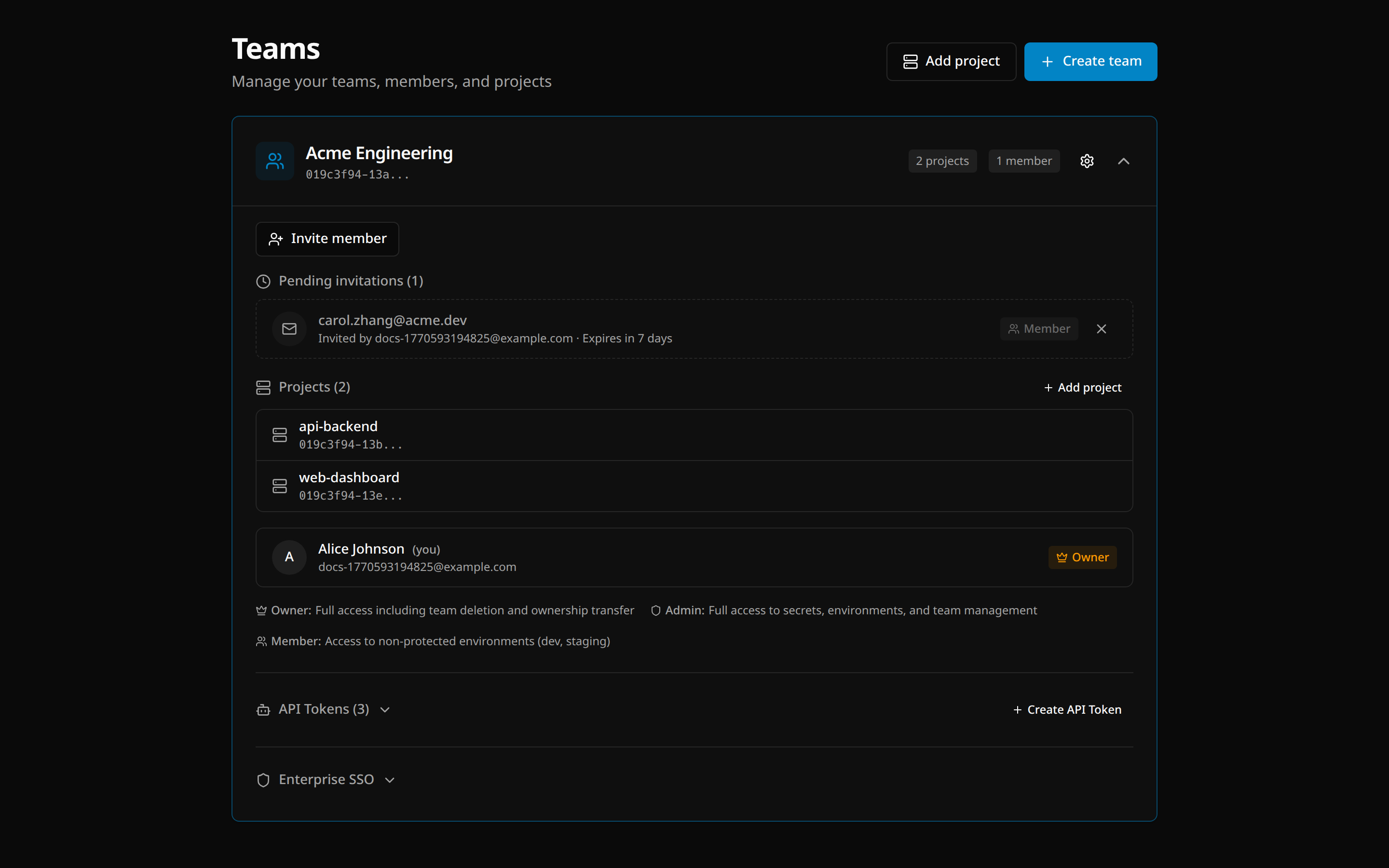
On Teams, click a team to expand it. Owners and admins manage its members; the expanded team also holds its projects, its API tokens and its Enterprise SSO settings.
Create a team
Create team → Team name → Create.
Invite someone
Click Invite member, enter their Email address, choose a Role, and Send invite. They receive an email with a link; the invitation expires after 7 days. Pending invitations are listed on the team, where you can cancel one with ×.
| Role | Can |
|---|---|
| Owner | Everything, including deleting the team and transferring ownership. One per team; not assignable by invitation. |
| Admin | Read and write secrets in every environment, and manage members, environments and API tokens. |
| Developer | Read and write secrets in non-protected environments; read-only in protected ones. |
| Operator | Read-only access to every environment, protected included. |
| Viewer | Read-only access to non-protected environments. |
| Billing | Manage billing only. No access to secrets. |
The info icon next to Role (Compare roles) opens a side-by-side permission grid.
Change a role, deactivate or remove
Open the ⋯ menu next to a member:
- Change role sets a new role. To change several at once, tick members and use Change role in the selection bar. An admin cannot change another admin’s or the owner’s role.
- Deactivate member suspends someone without removing them. They keep access for a 7-day grace period (marked Grace period), then lose all access while keeping their role and history (marked Deactivated). Reactivate member restores them at once, as long as the team has a free seat, paid Developer seats included. Someone still in their grace period can always be reactivated, because they still hold their seat. The owner cannot be deactivated.
- Remove from team removes them after you confirm with Remove. You cannot remove the owner or yourself.
Team settings
The gear icon on a team opens Team Settings:
- Rename team.
- Transfer ownership (owner only): select a member, then Transfer ownership and Confirm transfer. You become an admin.
- Leave team (anyone but the owner).
- Delete team (owner only), confirmed by typing the team’s name.
API tokens
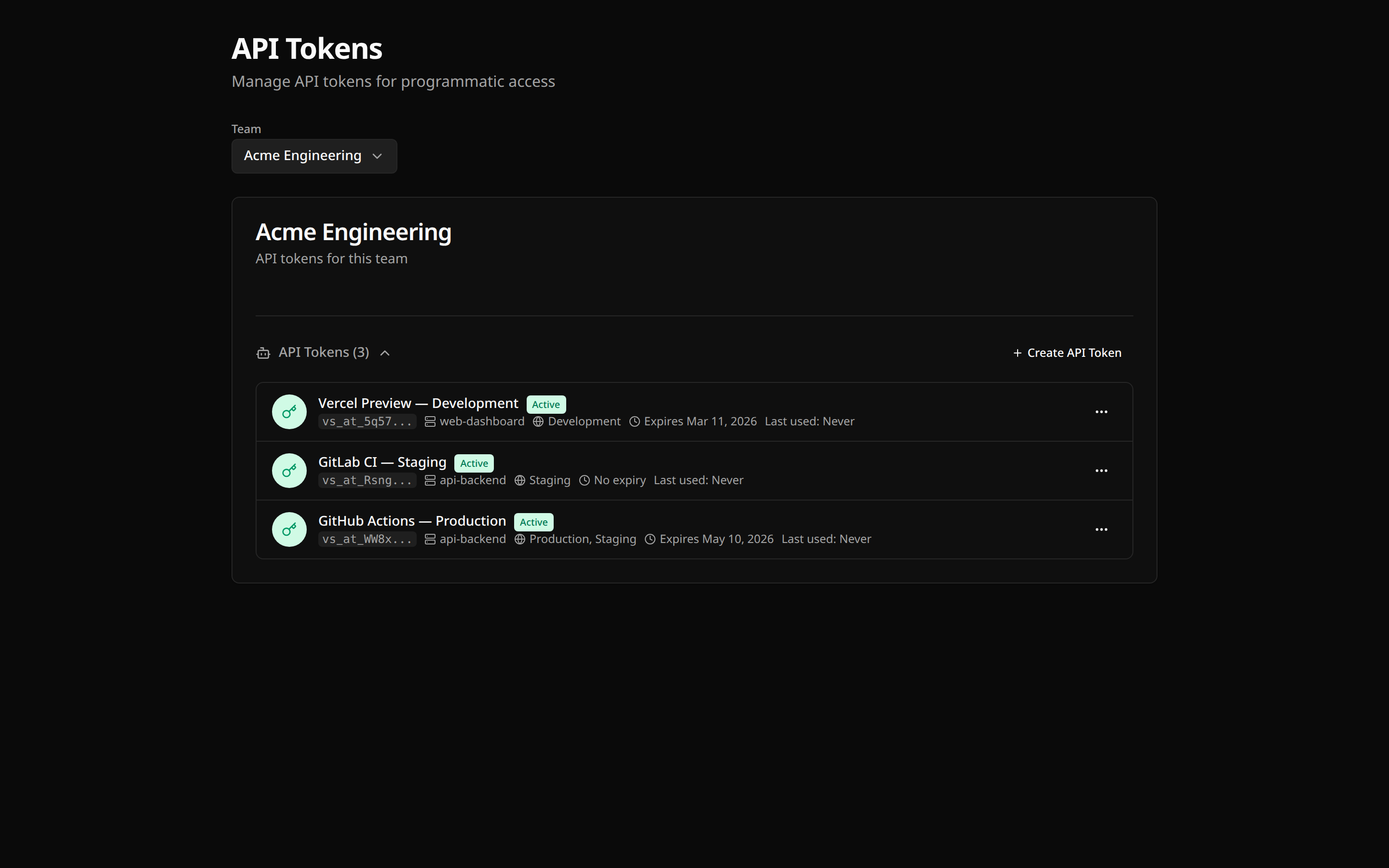
API tokens give a pipeline or script access without a person’s sign-in. Each token belongs to one team, and only owners and admins create and manage them.
Create a token
On API tokens, pick the Team, then Create API Token:
- Name: what will use it, for example
GitHub Actions – Production. - What can this token do?: Read secrets, or Read and change secrets.
- Let an AI agent use this token over MCP: on only if an agent will use it.
- Expires after: from 1 day to 1 year. Developer-plan tokens last at most 90 days.
- Scope: limit the token to specific Projects and Environments. A deploy token for production needs nothing else. A write token changes a protected environment only when you choose that environment here; the summary under the form says which.
Click Create token and copy the token now: it is shown once and never again.
Use a token
Set it as VARSAFE_API_TOKEN (the CLI also accepts VARSAFE_TOKEN); no login step is needed:
export VARSAFE_API_TOKEN=vs_at_xxxxxxxxxxxxx
varsafe run -p my-api -e production -- ./deploy.sh
In CI, keep the token in your CI provider’s secret store:
env:
  VARSAFE_API_TOKEN: ${{ secrets.VARSAFE_API_TOKEN }}
See CI/CD pipelines for complete pipelines.
Narrow, rotate or revoke a token
Each row shows the token’s scope and expiry, and when it was last used, from which IP address and with which client (for example curl/8.4.0 or varsafe-cli 7.5.0 / Linux). Each token’s ⋯ menu offers:
- Rename.
- Make read-only: removes write access. This cannot be reversed.
- Rotate: issues a new value and retires the old one in the same step. Copy the new value and update your CI secret.
- Revoke: the token stops working immediately and cannot be restored. Use this if a token may have leaked.
See API tokens for token scopes in depth.
AI agents
Agents lists every AI agent connected to your account over MCP (Claude Code, Cursor and other MCP clients). Each connection shows the client and who published it, the teams it can reach, when it connected and was last used, and the access it was granted. Revoke disconnects it at once; select several to revoke them together. How to connect has the setup steps for each client.
Everything an agent does is in the audit log, with the source Agent · MCP. See AI agents (MCP).
Your sign-in security
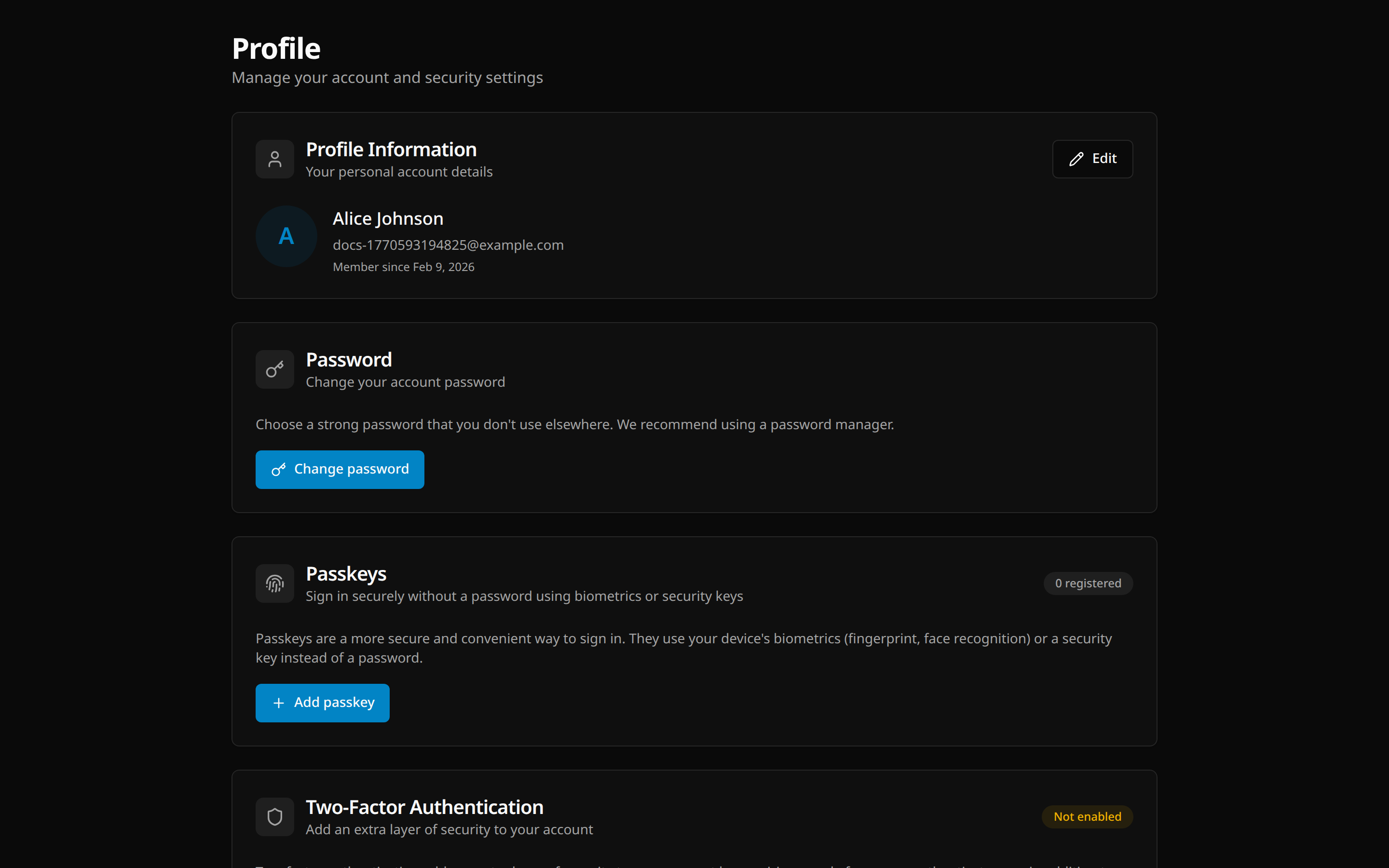
Click your name at the bottom of the sidebar to open Profile.
Two-factor authentication
Available when your account has a password. Under Two-Factor Authentication, click Enable 2FA, enter your Password, scan the QR code with your authenticator app (I’ve scanned the code), enter the Verification Code, and store the backup codes somewhere safe (I’ve saved the codes). You can later Regenerate backup codes or Disable 2FA.
Passkeys
Passkeys let you sign in with your device’s fingerprint or face recognition, or a security key, instead of a password. Under Passkeys, click Add passkey, optionally name it (for example “MacBook Pro”), and follow your browser’s prompts.
Once you have at least two passkeys, Passkey-only mode makes them the only way to sign in: your password, GitHub, GitLab, Google, Bitbucket and SSO are refused. See Passkey-Only Mode.
Connected accounts
Connected accounts lists GitHub, GitLab, Google and Bitbucket. Connect one to sign in with it too: the provider asks you to approve, then brings you back here. It must use the same email address as your varsafe account, and your email must be confirmed. Disconnect removes it, unless your account has no password and no other provider. See Connected Accounts.
Sessions
Active Sessions lists every browser signed in to your account, with its browser, operating system, IP address and last activity. Revoke one with the icon on its row, or Revoke all other sessions at once.
CLI Sessions lists every machine where someone ran varsafe login as you. Revoke signs that machine out immediately and leaves your browser sessions alone.
Audit log
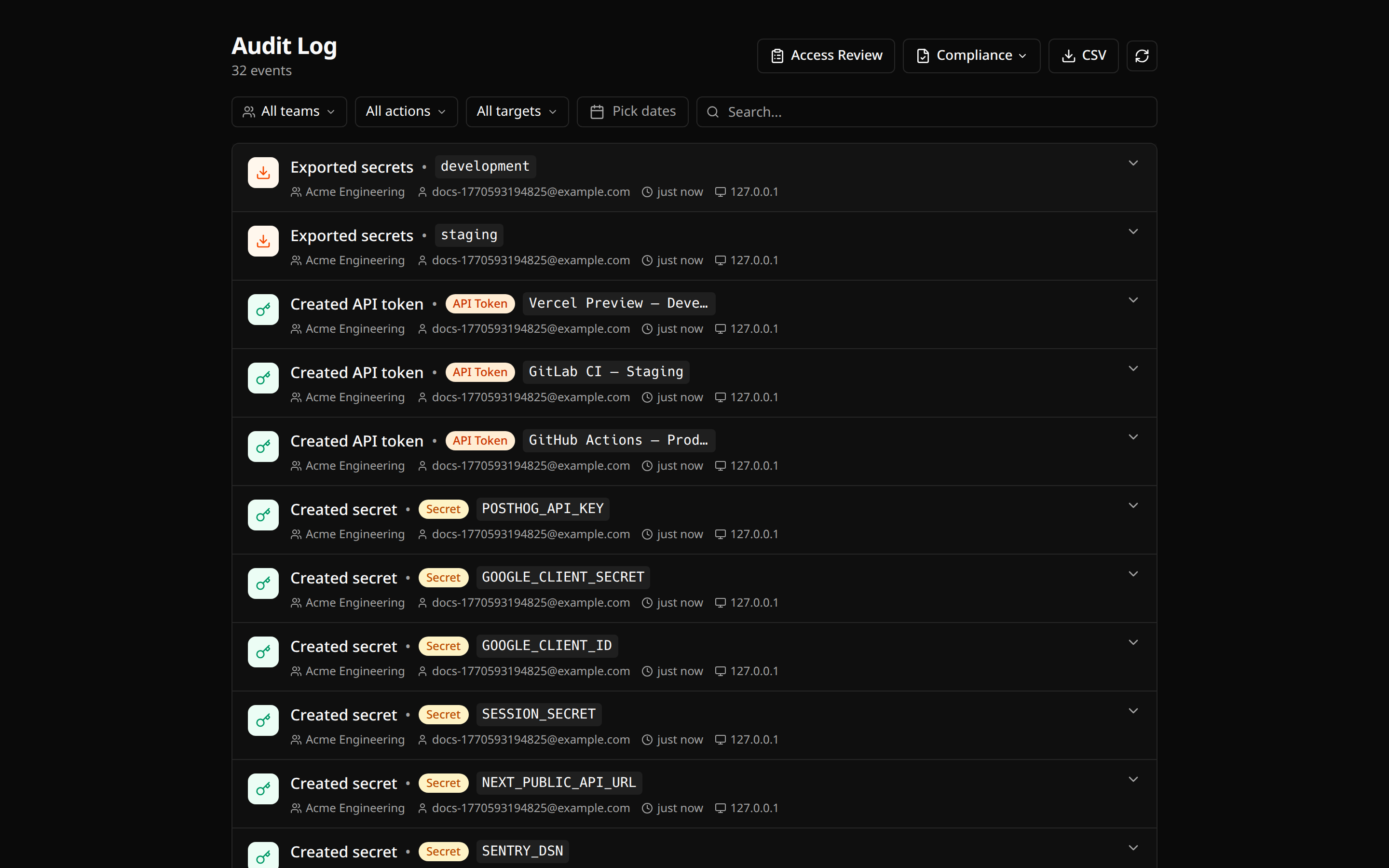
The audit log records every read of a secret value, every change, every sign-in, and every change to who has access. It is append-only: no one can edit or delete an entry, your team’s owner included. Entries are removed only once they pass the retention period, and deleting an account anonymizes that person in past entries.
Find an event
Narrow the list with the filters across the top:
- All teams, All actions (with its own search) and All targets: pick one or more.
- Pick dates: Today, 7d, 30d, 90d, or a custom range.
- Search…: matches the person’s email, the target’s name, and the key names a record lists: those a read or export disclosed and those a rollback changed. Searching for
DATABASE_URLlists who read it and the rollbacks that changed it. A record lists at most 200 keys in each list, so in an environment with more keys than that, a key past the 200th by name can be missing from a large read; itskeysTruncatedsays so. Reads and rollbacks are filed under their environment.
Each row shows Time, Who, Action, Target, Source and IP, grouped by day. The source tells you how the action arrived: Dashboard, CLI, API, Service account, Agent · MCP, or System. Click a row for the full detail: event ID, exact timestamp, actor and target IDs, user agent, and the event’s metadata.
What is recorded
| Area | Examples |
|---|---|
| Sign-in and account | Sign-ins and failed attempts, sign-outs, 2FA and passkey changes, password resets, revoked sessions, new devices |
| Secrets | Created, updated, deleted, read, exported, rotated, rolled back |
| Environments and keys | Environments created, updated, deleted and rolled back; encryption keys generated, accessed, refused and rotated |
| Teams and people | Invitations, members joining, leaving and removed, role changes, deactivations, ownership transfers, settings changes |
| Projects | Created, updated, deleted |
| API tokens | Created, updated, rotated, revoked, deleted |
| CLI and agents | varsafe login approvals and revocations; MCP connections, and what each agent listed and read |
| SSO and billing | SSO configured, changed and removed; subscription and billing email changes |
| The audit log itself | Exports and access reviews generated, and entries removed when they pass retention |
Reading a composed secret records every secret it is built from, not just the one requested.
Retention and exports
The Developer plan shows 7 days of history and the Team plan 90 days.
On the Team plan, owners and admins click Export to download a team’s audit log for a period (the last 7, 30 or 90 days, or a custom range):
- CSV: one row per event, with its IP address.
- SOC 2, GDPR or HIPAA: a JSON report framed for that review.
The file holds every event of the period, built on the server, not just the page on screen, and taking it is itself recorded in the audit log. Other members are told that only owners and admins export; on the Developer plan, Export offers the upgrade. See Compliance Exports.
Access Review (Team plan) summarizes, for a team, how many members and projects it has and how many people can reach production.
Billing and plans
Billing is available to owners, admins and billing members.
The page manages one team, named under its title: your active team, or the team an upgrade link was for. Upgrade to Team in the audit log’s Export menu opens the billing of the team you were exporting. After Stripe Checkout or the billing portal you come back to that same team’s billing. For a team whose billing you do not manage, the page says so and links to the billing of the teams you do manage.
| Developer | Team | |
|---|---|---|
| Price | Free for 3 members, then $6 per extra member per month | $15 per member per month, or $12 billed annually |
| Team members | Up to 25 | Unlimited |
| Projects, environments, secrets | Unlimited | Unlimited |
| Roles | All 6 roles | All 6 roles |
| API token lifetime | Up to 90 days | Up to 1 year |
| Audit history | 7 days | 90 days |
| Audit log export | Included | |
| Access reviews | Included | |
| SSO (SAML / OpenID Connect) | Included | |
| Email support | Included | Included |
| Priority support | Included |
To upgrade, choose Monthly or Annual on the Team plan card; payment goes through Stripe Checkout. On the Developer plan, Add Seats buys members beyond the free three.
The Current Plan card shows your usage against your plan’s limits and your renewal date. Manage Subscription and Manage Billing open Stripe’s billing portal, where you change payment method, download invoices and cancel. Under Billing Email, choose where invoices and payment notices go.